
A team structures how your playbook is split among your reps.
A team carries one or more segments of your playbook (the meeting types), and a segment can only belong to one team. A team therefore defines which part of the playbook its members work on and are evaluated on.
For example, a team of BDR can carry the Prospection and R1 segments, while a team of AE can carry R2 and Closing. Since a segment can only sit on one team, splitting your reps by region or market only makes sense if they actually work on different segments.
Linking a segment to a team isn't self-service: to attach a segment to a team, email us at support@eagr.ai and we'll take care of it.
You manage teams from the Team page (Admin role), with the Manage teams button.
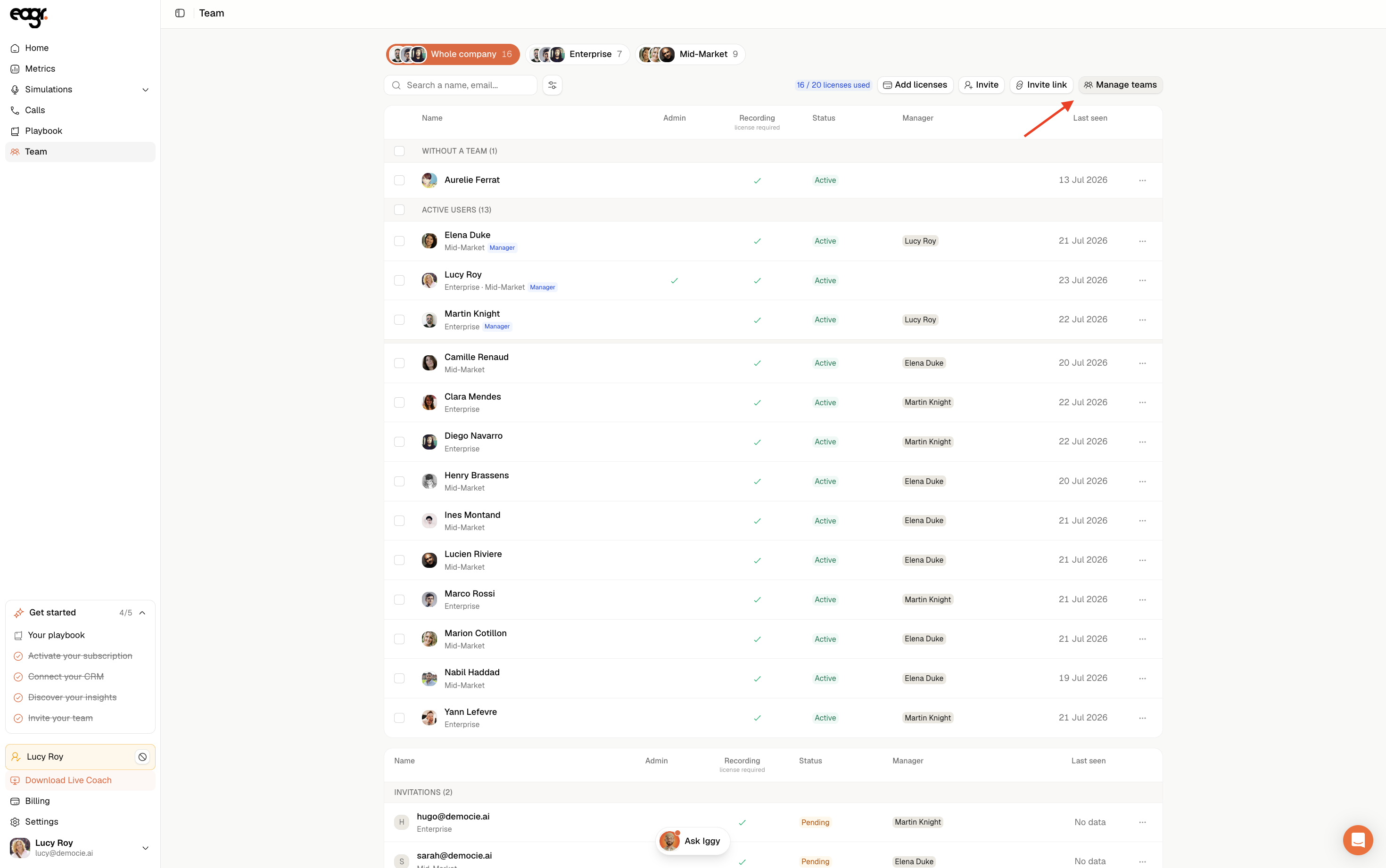
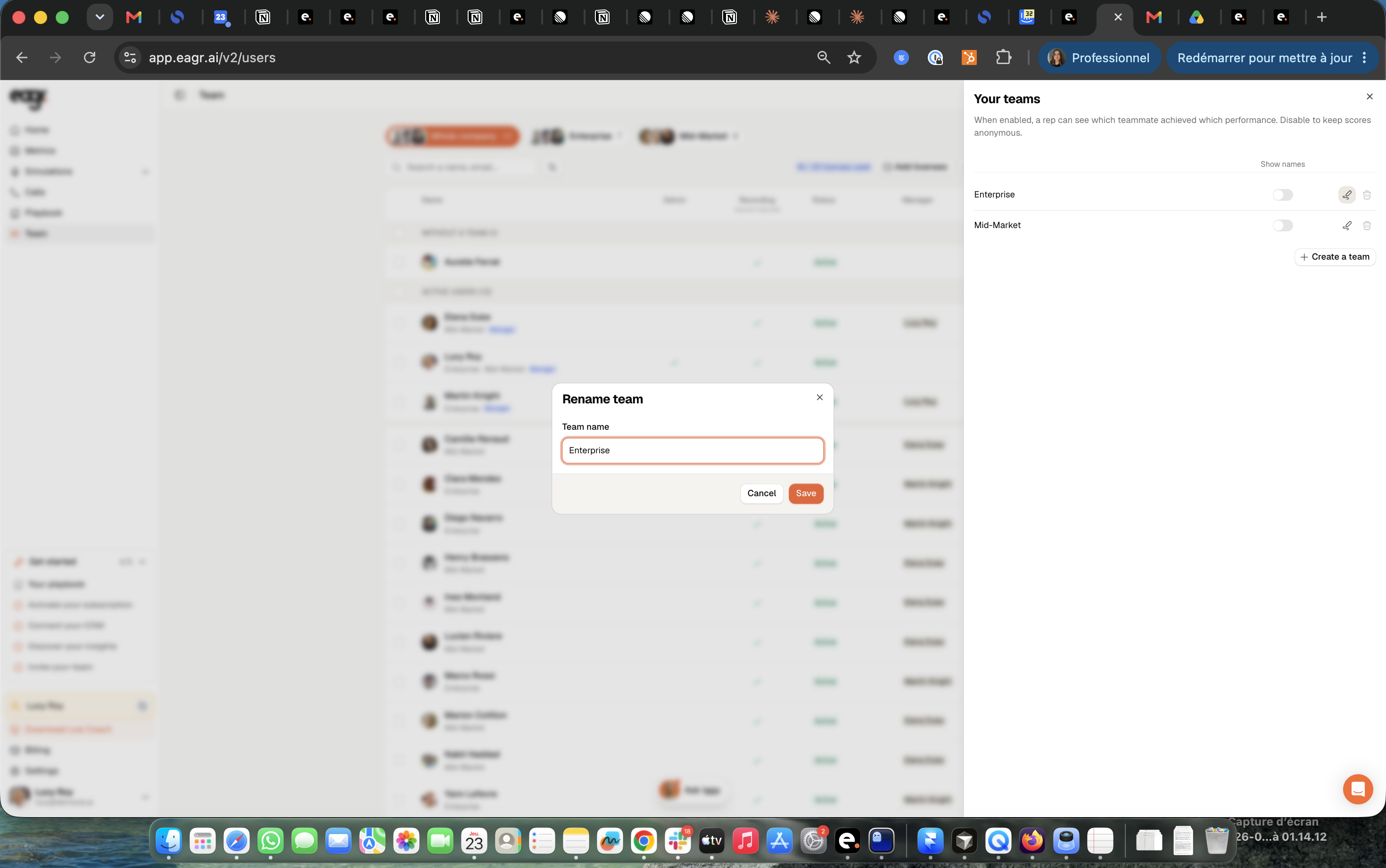
The Your teams panel opens on the right: that's where you create, rename and delete your teams.
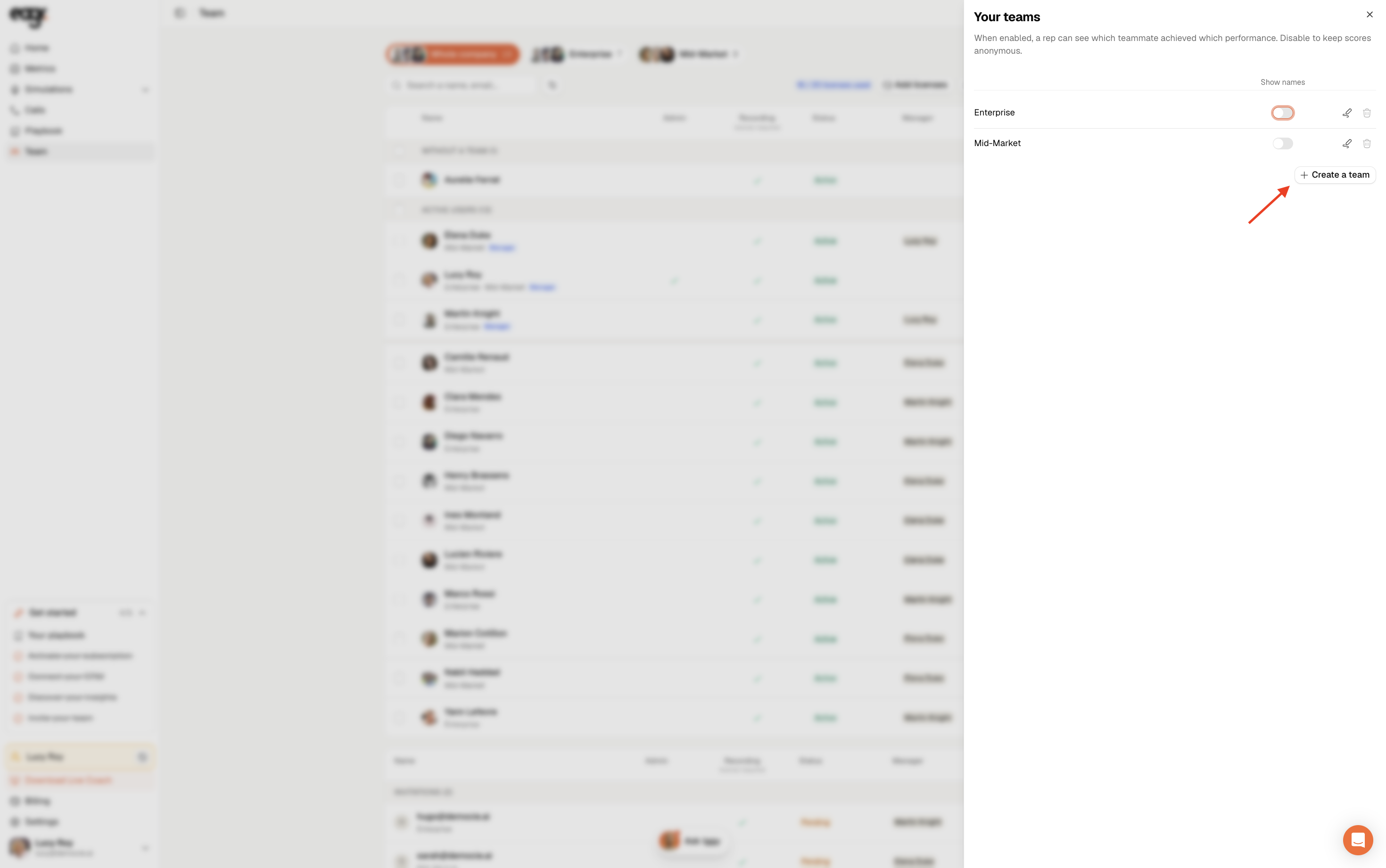
Create a team
In Your teams, click + Create a team.
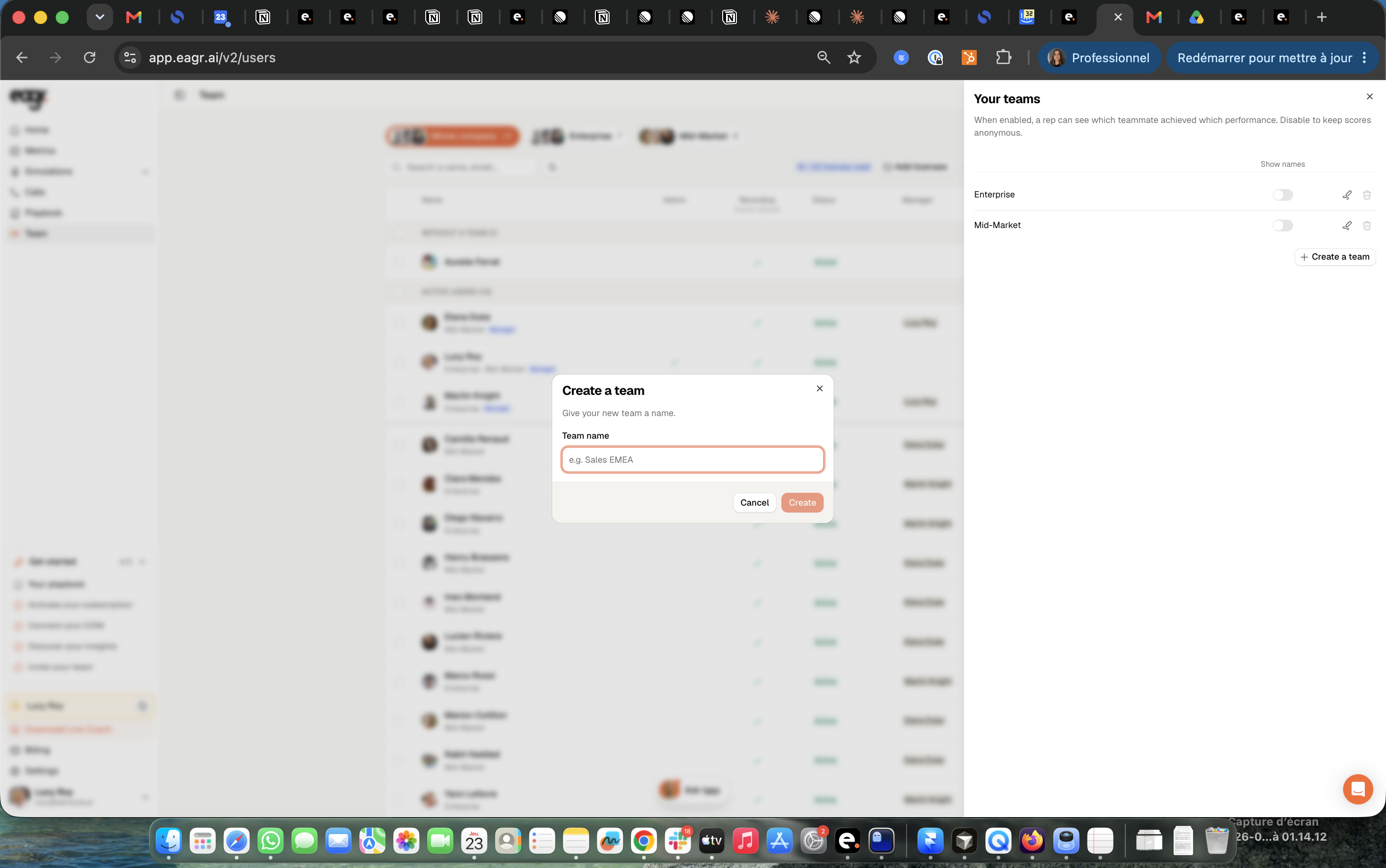
Give your team a name (for example "Sales EMEA"), then click Create.
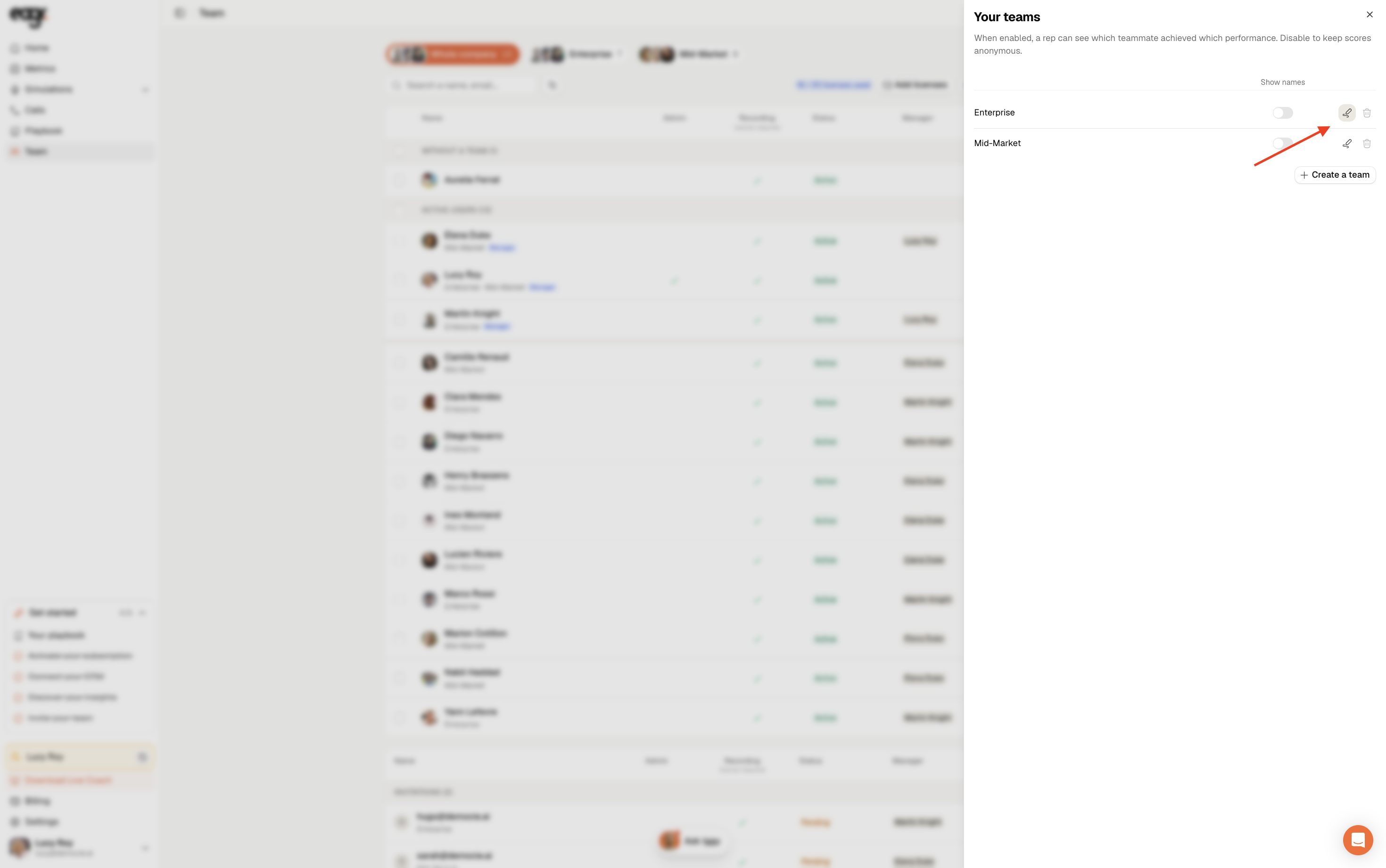
Rename a team
In Your teams, click the pencil icon next to the team's name.
Edit the name, then click Save.
Delete a team
Still in Your teams, click the trash icon next to the team.
Show names or keep scores anonymous
Each team has a Show names setting. When enabled, a rep can see which teammate achieved which performance. Disable it to keep scores anonymous within the team.
Add people to a team
Adding someone to a team is done from their profile, not from this panel (see Edit a user). The same person can belong to several teams.