Only users with the manager, director, or boss role can edit other users. For more details on roles, see Understanding roles.
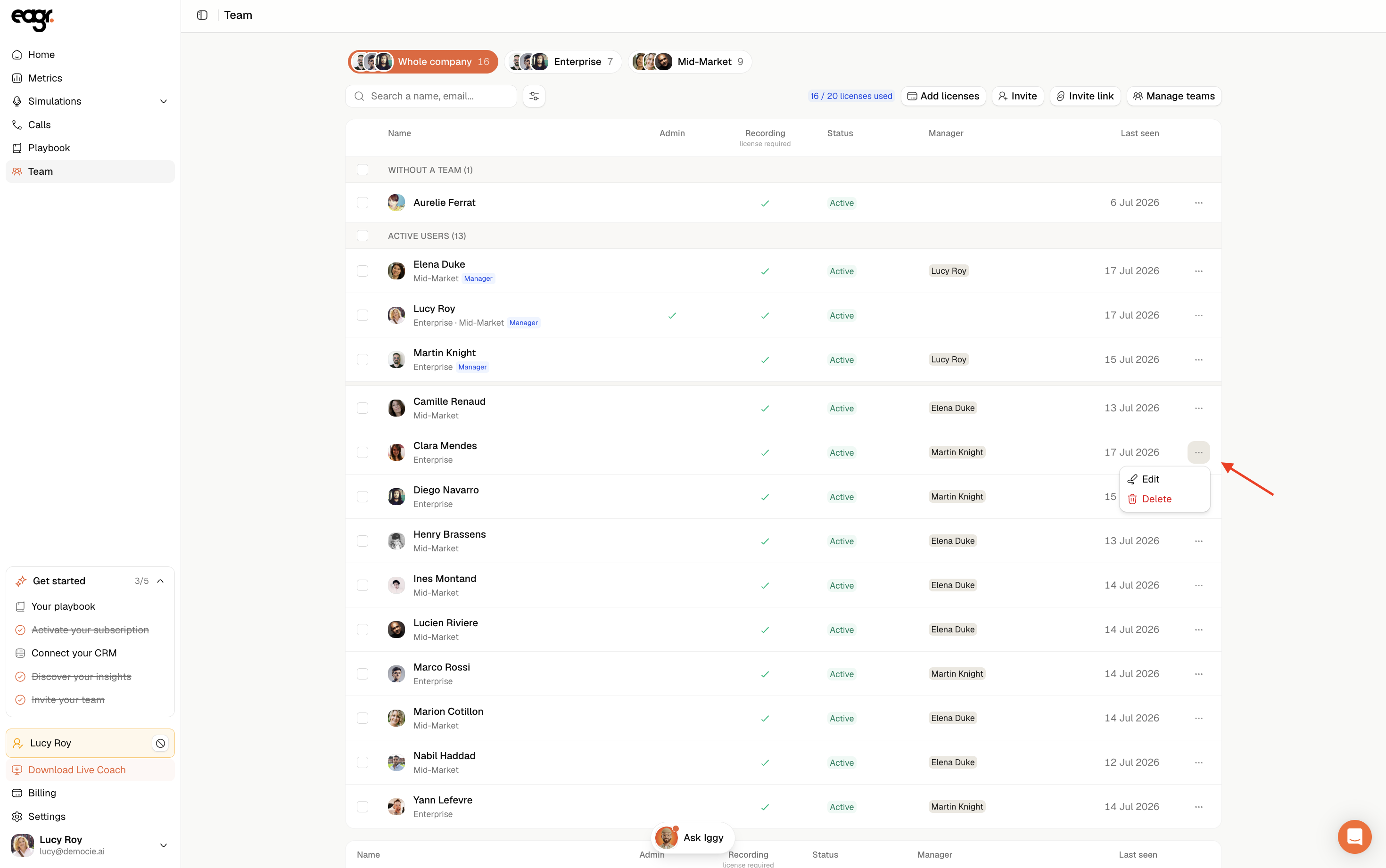
Access the user list
In the left sidebar, go to Administration > Users. The User management section displays all users in your organization with the following information: name, email, role, manager, status (Active or Inactive), and last edit date.
You can use the search bar to find a user by name or email.
Open the edit form

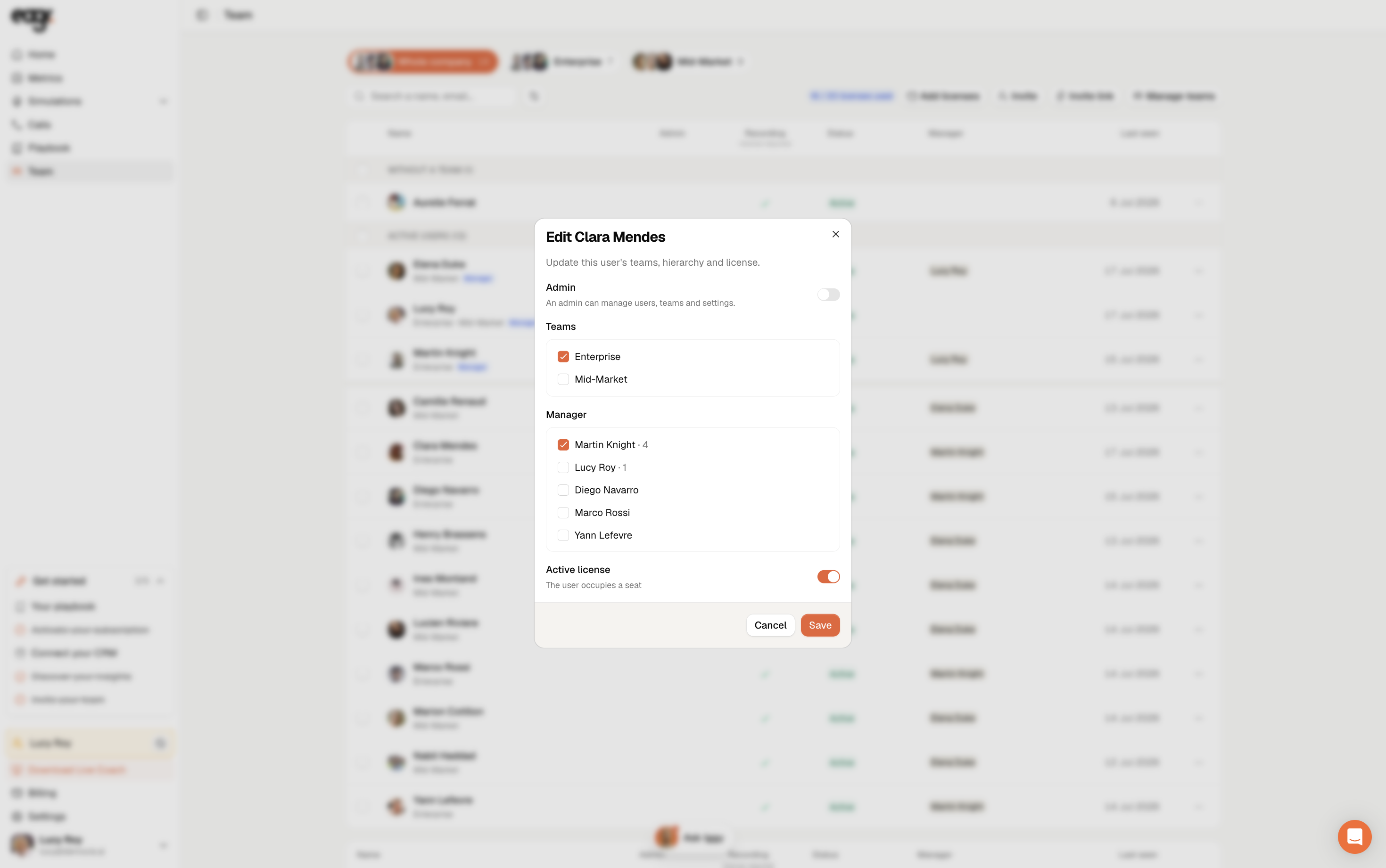
Click the three-dot menu (⋯) on the right side of a user's row, then select Edit User. A dialog opens with the title "Edit User".

Editable fields

First Name / Last Name
The user's first and last name. Update them if needed (e.g. after a name change).
The user's email address used to log in.
Role
The Role dropdown lets you change the user's role. Available options: user, manager, director, boss.
Please note that you can only assign a role that is below yours in the hierarchy. For example, a manager can only assign the user role, while a director can assign user or manager.
Changing a role immediately affects what the user can see and access. See Understanding roles for details on each role.
Be careful when changing a role — a user promoted to manager will gain access to the Administration menu and their team's data. A manager downgraded to user will lose that access immediately.
Profile picture
Click the .profile avatar to upload or change the user's profile picture.
Segments
Select which segments apply to this user by checking the relevant boxes. Segments determine which part of the playbook is used to analyze the user's calls. At least one segment must be selected.
Tutor
Use the Search for a tutor... field to assign a tutor to this user. A tutor is another user who will gain visibility on this user's data without being their manager. See Understanding roles for more on the tutor system.
Save your changes
Click Save to apply your changes, or Cancel to discard them.
Revoke a user
From the same three-dot menu (⋯), you can also select Revoke User to cut their access to the platform. For full details, see Revoke a user.