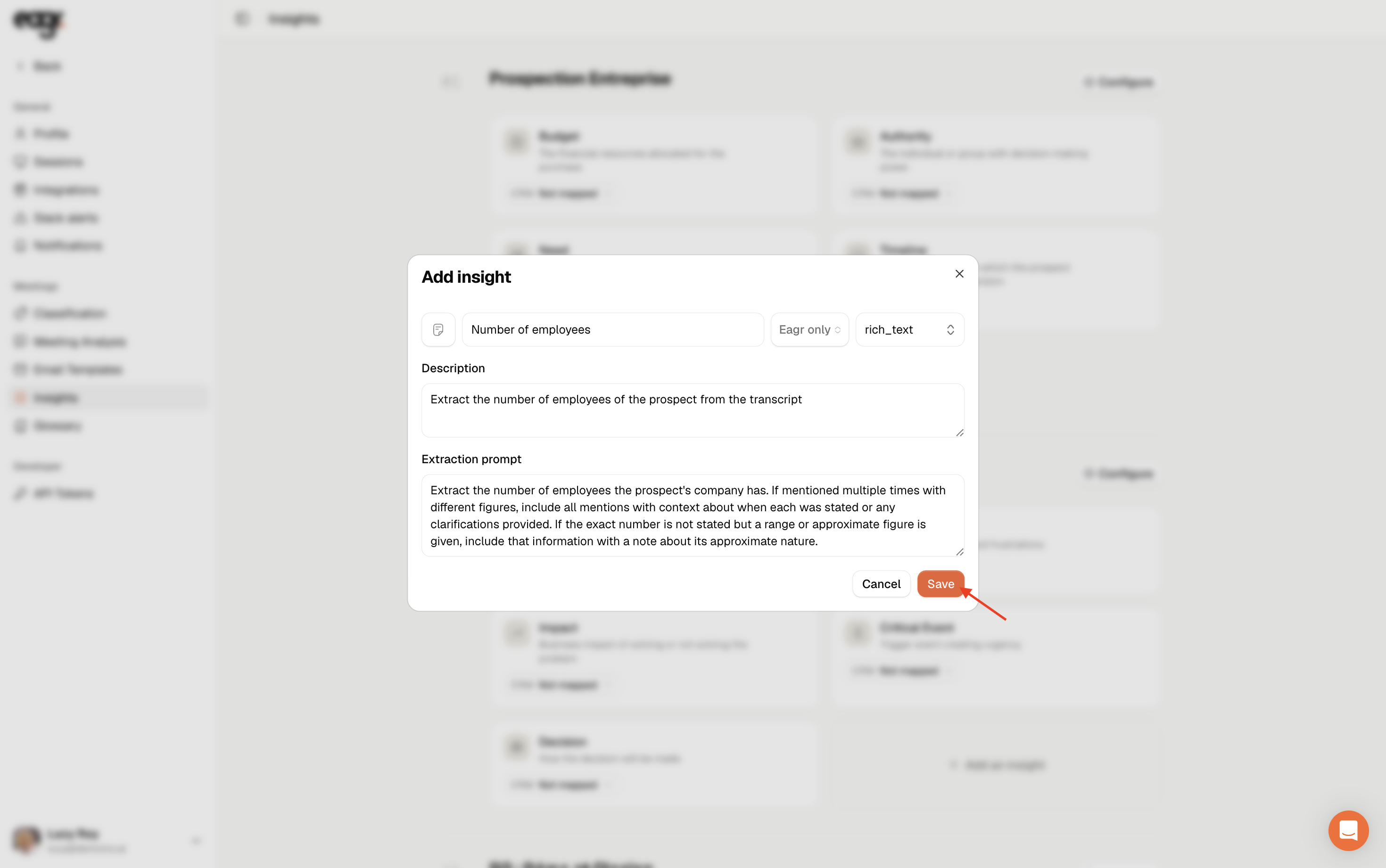
Insights are pieces of information Eagr pulls from your calls' transcript and structures as fields (for example the budget, the number of employees, the competitors mentioned). You then find them in the call analysis, and you can send them to your CRM.
Setting up insights is reserved for the Admin role.
Where to find insights
Go to Settings, then the Insights tab (Meetings section).
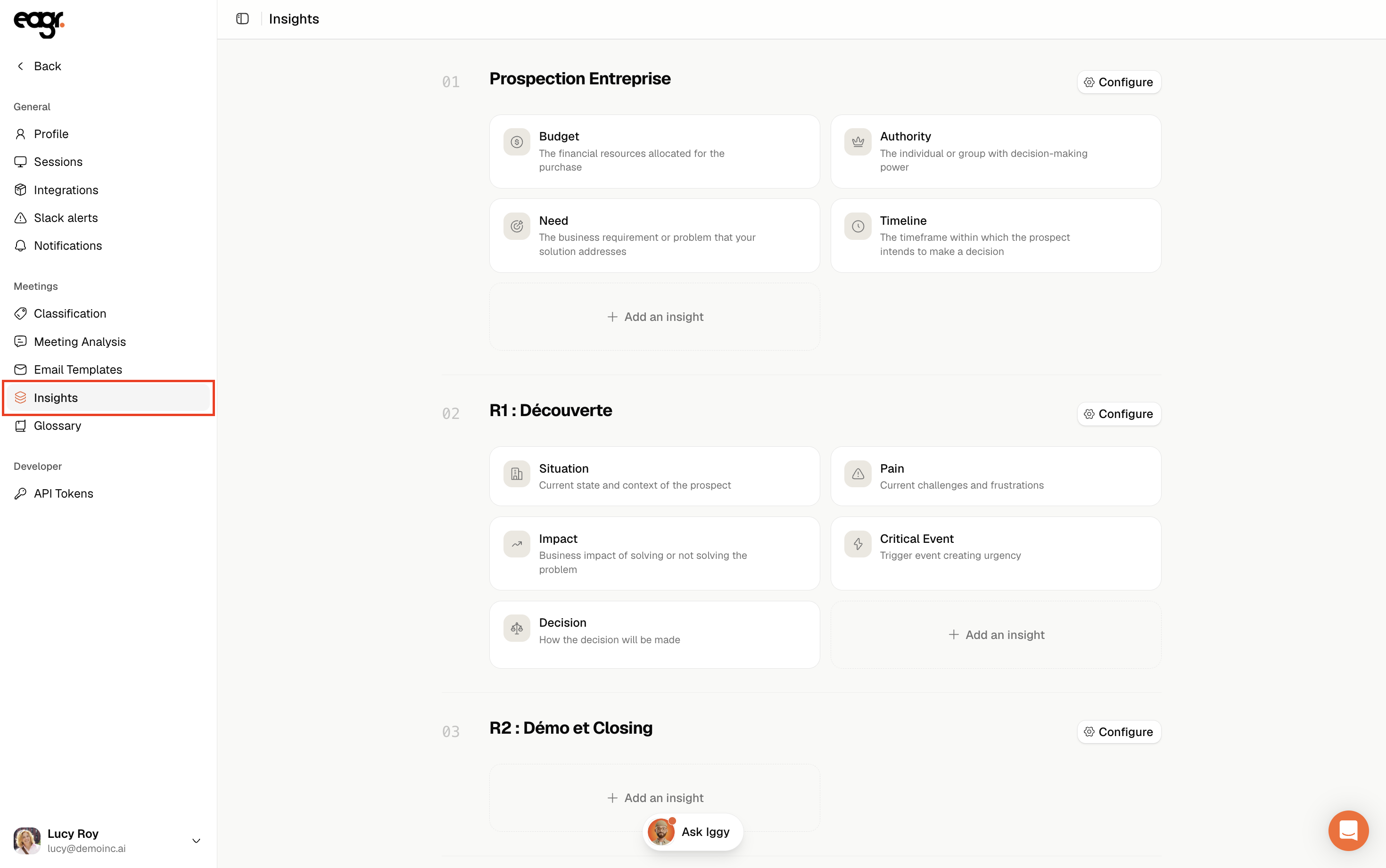
Insights are organized by meeting type (your playbook's segments). You don't look for the same information depending on the meeting: for example, the lead source doesn't need to be extracted in an R2.
Configure a meeting type's insights
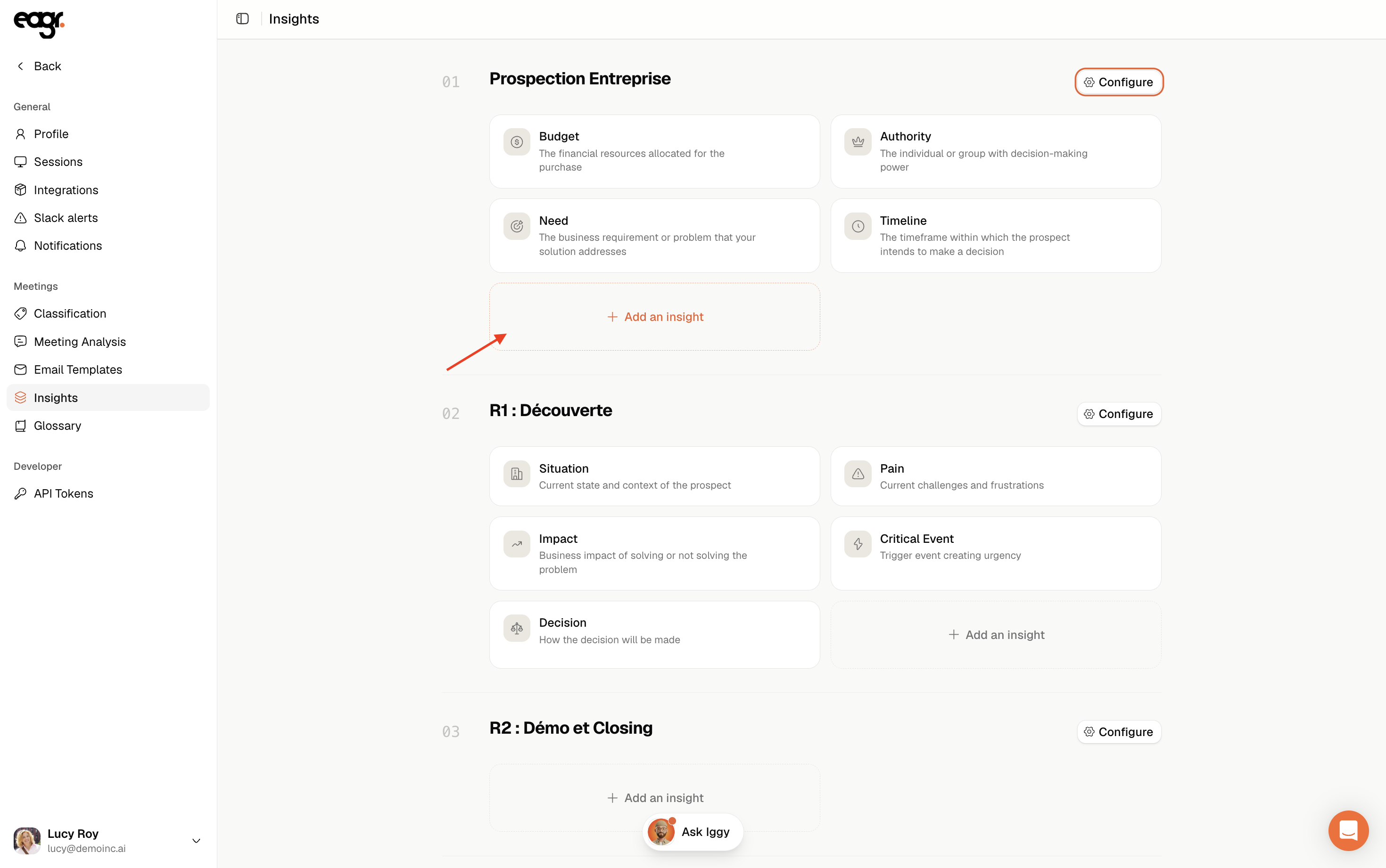
On a meeting type, click Configure.
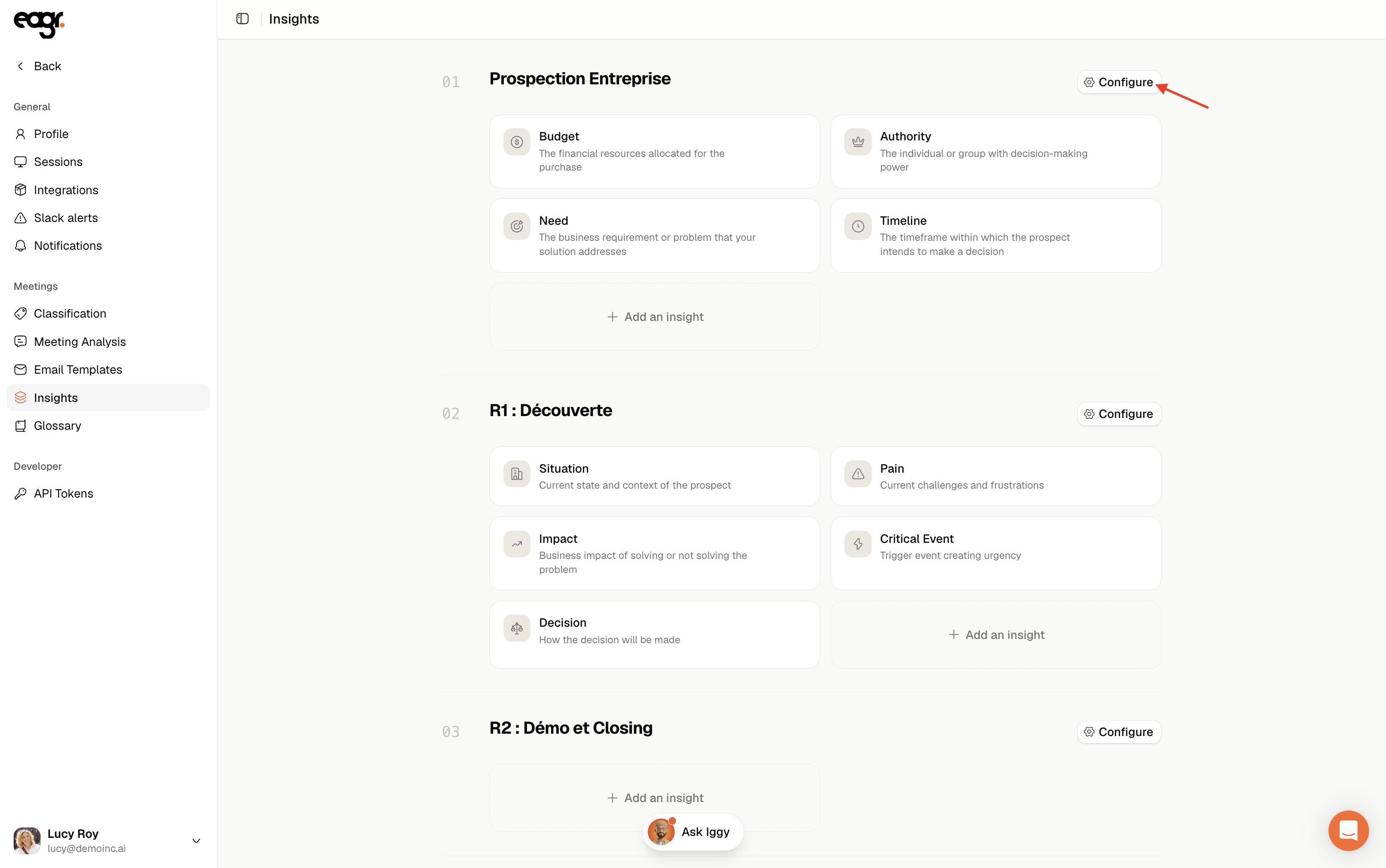
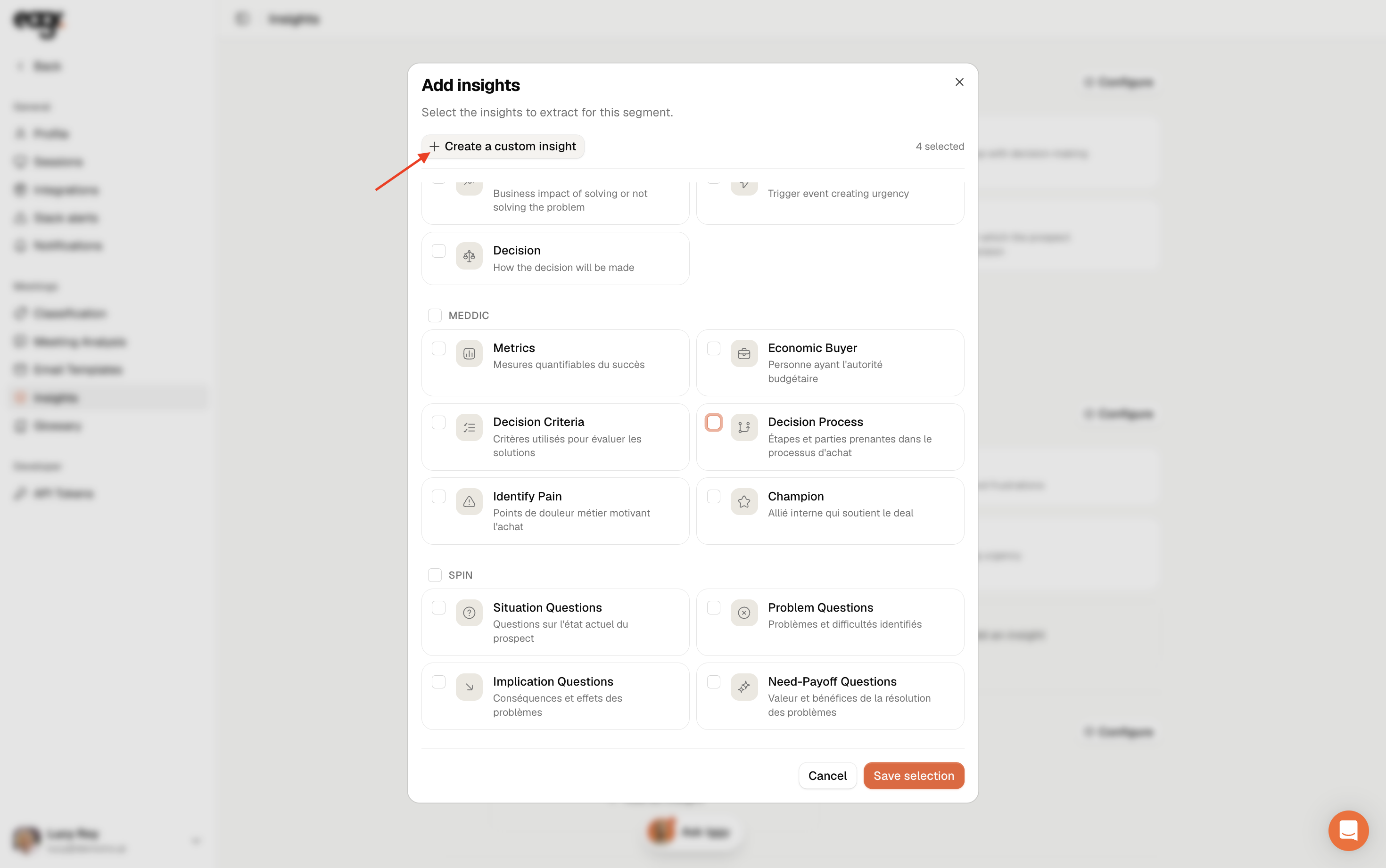
You can pick ready-made insights, grouped by sales method (MEDDIC, SPICED, SPIN...), then Save selection.
Create a custom insight
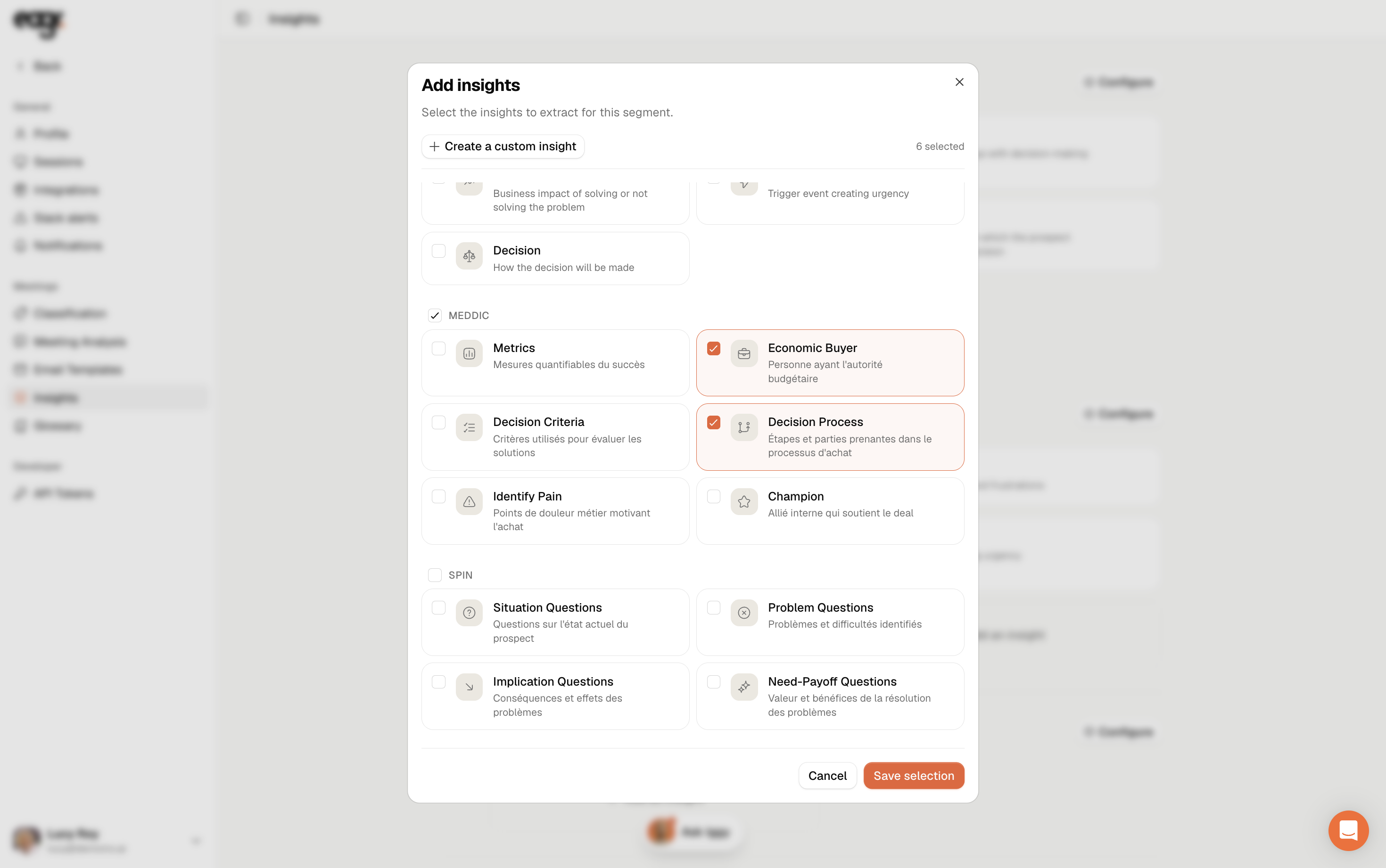
If no ready-made insight fits, click Create a custom insight in that menu.
You can also create one directly from a meeting type, with + Add an insight.
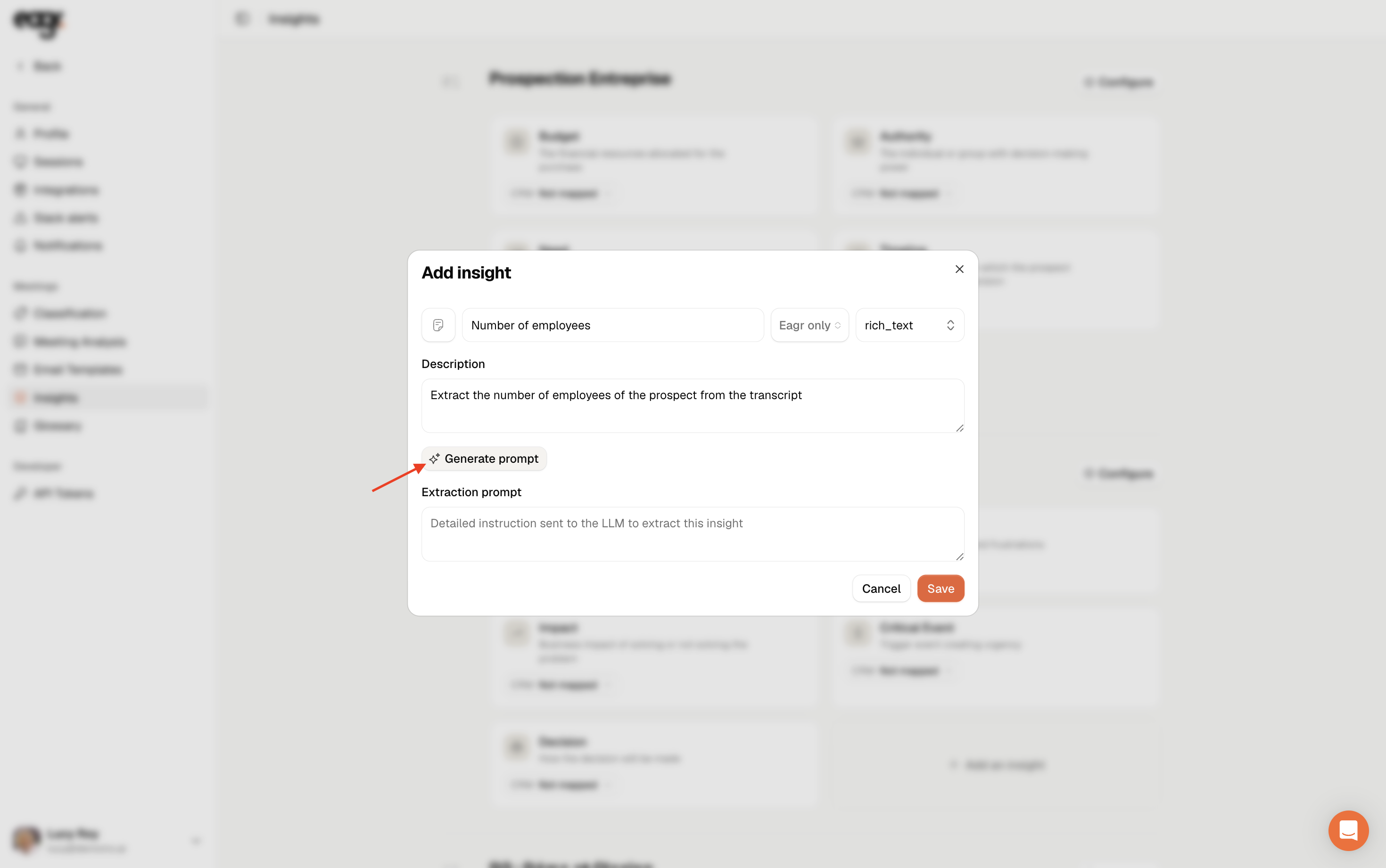
In the form:
- Give it a name and a description of the information you want to extract from the transcript.
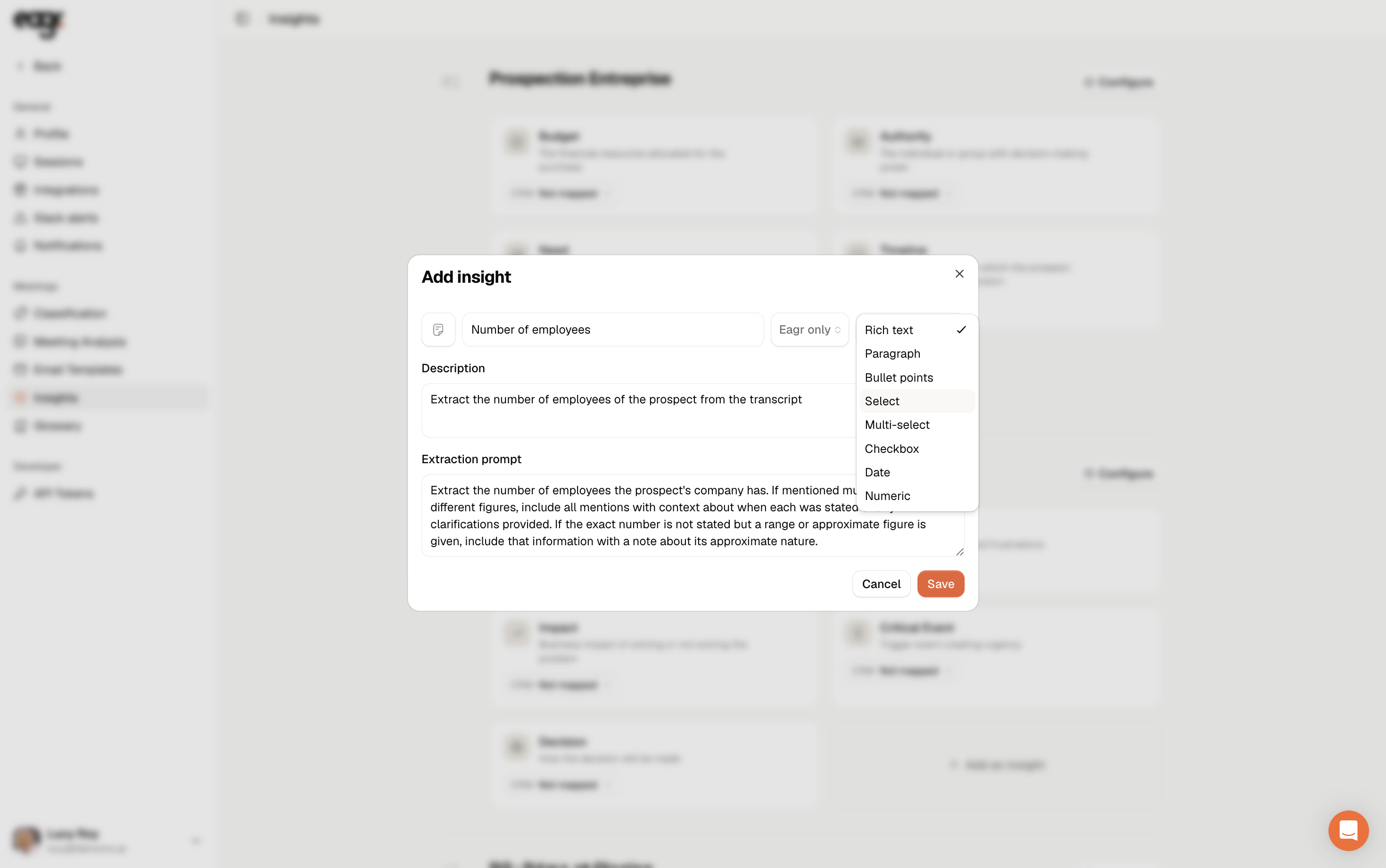
- Choose the field format: rich text, paragraph, bullet points, select, multi-select, checkbox, date or numeric.
- For a select, add your options with + Add option (for example 10-100, 100-200).
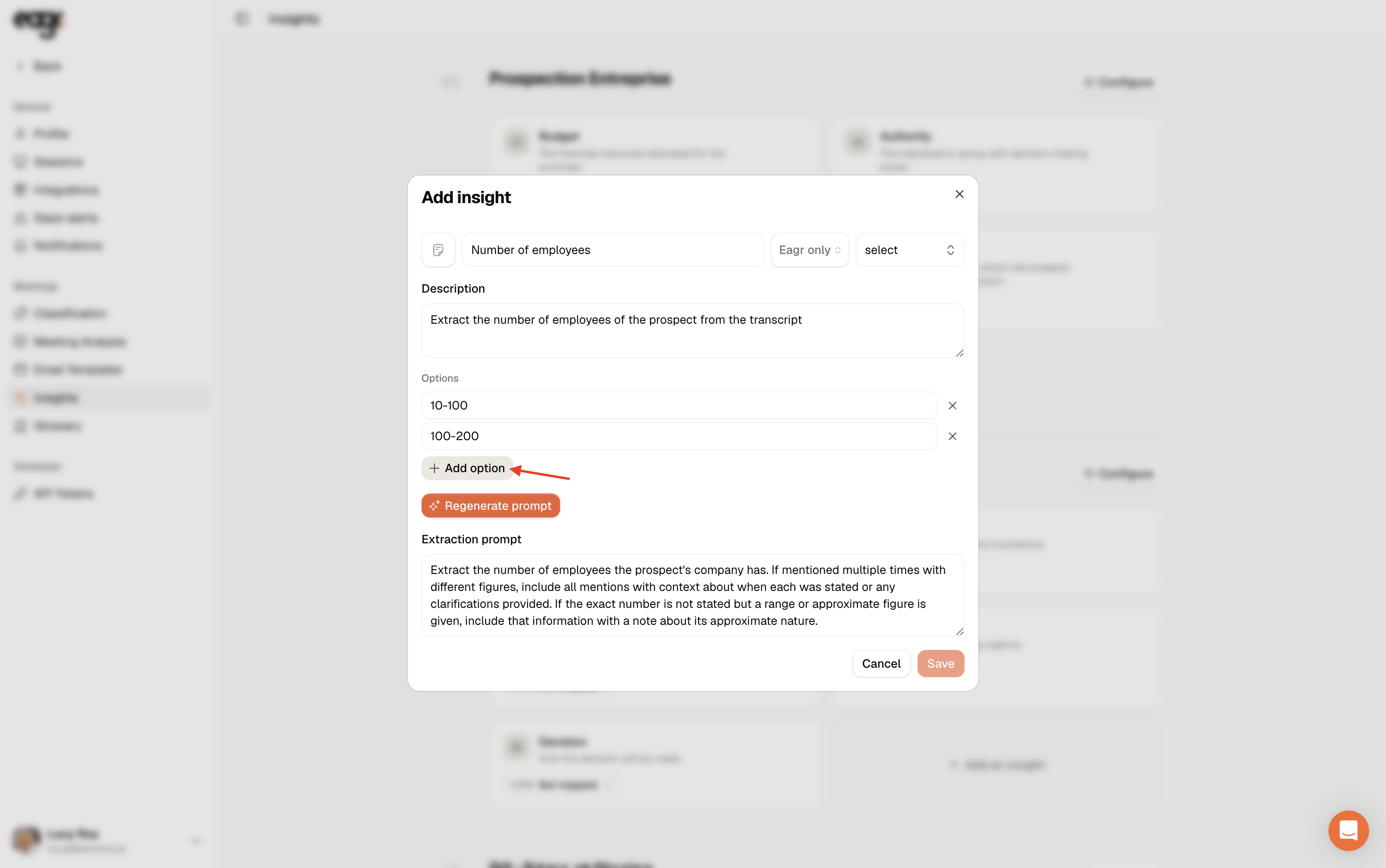
- Click Generate prompt: Eagr writes the extraction instruction for you from your description. You can edit it, then Regenerate prompt after any change.
Send an insight to your CRM
By default, an insight is filled in Eagr only. To send it to your CRM, choose the destination: either a dedicated field, or In the notes (notes are also a CRM field).
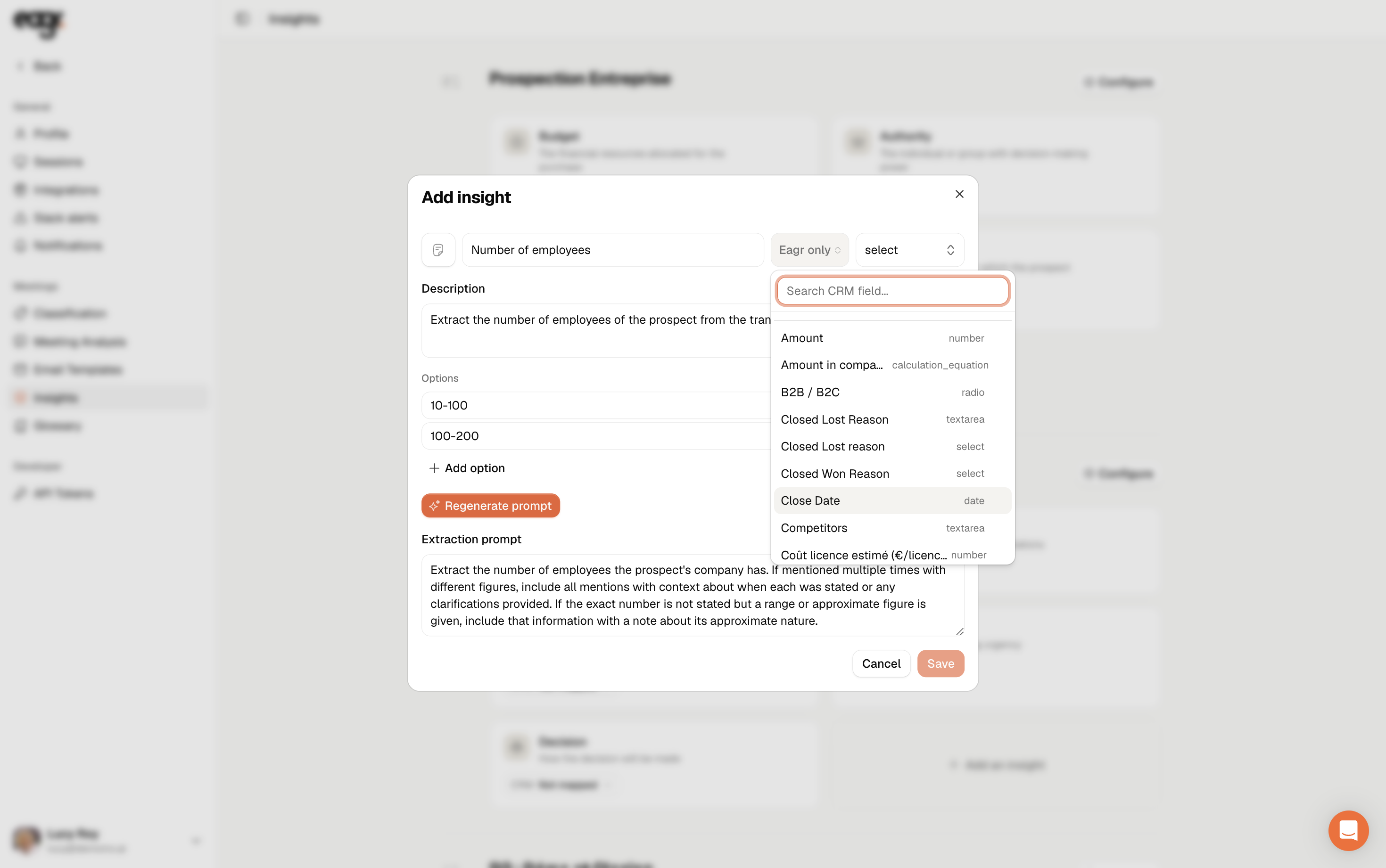
- This requires having connected your CRM (see Connect your CRM).
- For now, we only send to CRM fields linked to a deal.
- If the field is mapped to a CRM field, the format is already pre-filled to match.
Finally, click Save. The information will be sent as soon as it's spotted in a call linked to the deal.