
Eagr connects to your recording tool (Ringover, Aircall, and others) and imports your calls and their transcripts automatically, no manual upload.
Where to connect
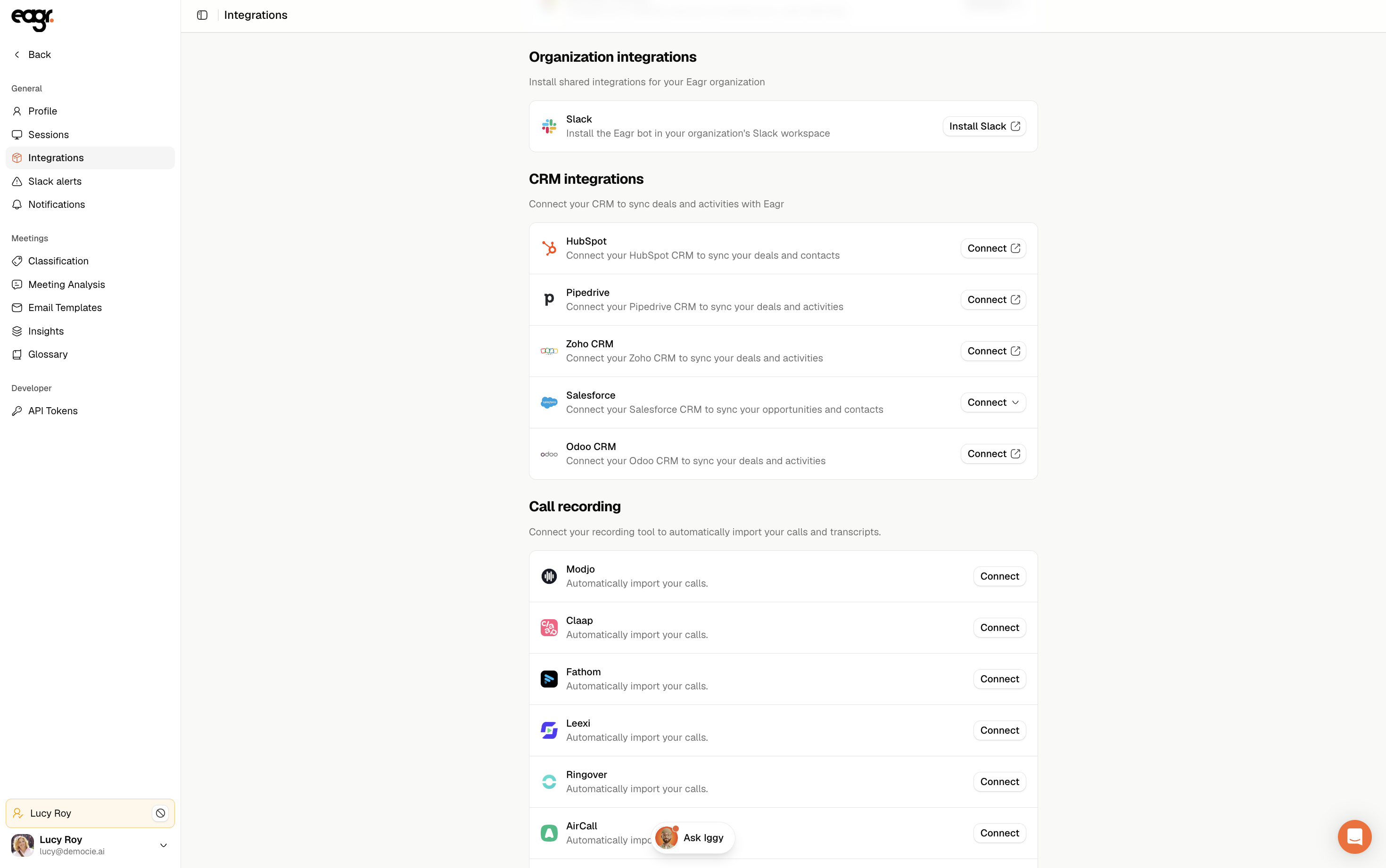
Go to Settings → Integrations, the Call recording section, then click Connect next to your tool and follow the instructions. It's an organization-level integration: it's done once and requires owner access to the Eagr workspace.
The 3 rules that decide everything
Before generating anything, check these three points, they're what makes your calls show up (or not):
- Your Eagr email = your identity in the recording tool. Eagr links each call by email, number or extension. If you're not registered with the same identity, the call isn't assigned to you.
- Call recording must be enabled on the recording-tool side, often number by number.
- The API key must be generated by an admin account with the right scopes. A limited key only sees part of the calls.
Ringover
- Sign in to the Ringover Dashboard as Administrator.
- Developer (sidebar) → API key → Create an API key.
- Under Rights, enable the access rights (Ringover recommends enabling all for a full sync).
- Copy the key.
- Check recording: Users → the user → Edit → Permissions → "Recordings and Supervision" → "Allow to record".
Aircall
- Sign in to the Aircall Dashboard as Admin / Owner.
- Integrations & API → API Keys → Add a new API key.
- Copy the API ID and API token immediately (the token is shown only at creation).
- Make sure recording is enabled on each relevant number.
Other tools
Eagr also supports Modjo, Claap, Fathom, Leexi, Sembly, Onoff, CallGear and Kiamo. The logic is the same: generate an API key as an admin and enable recording. For the detailed per-tool procedure, email support@eagr.ai.
My calls aren't showing up?
See the article Why isn't my call showing up or being analyzed?: it details the full checklist (identity, minimum duration, valid key, sufficient plan).