
Create your account
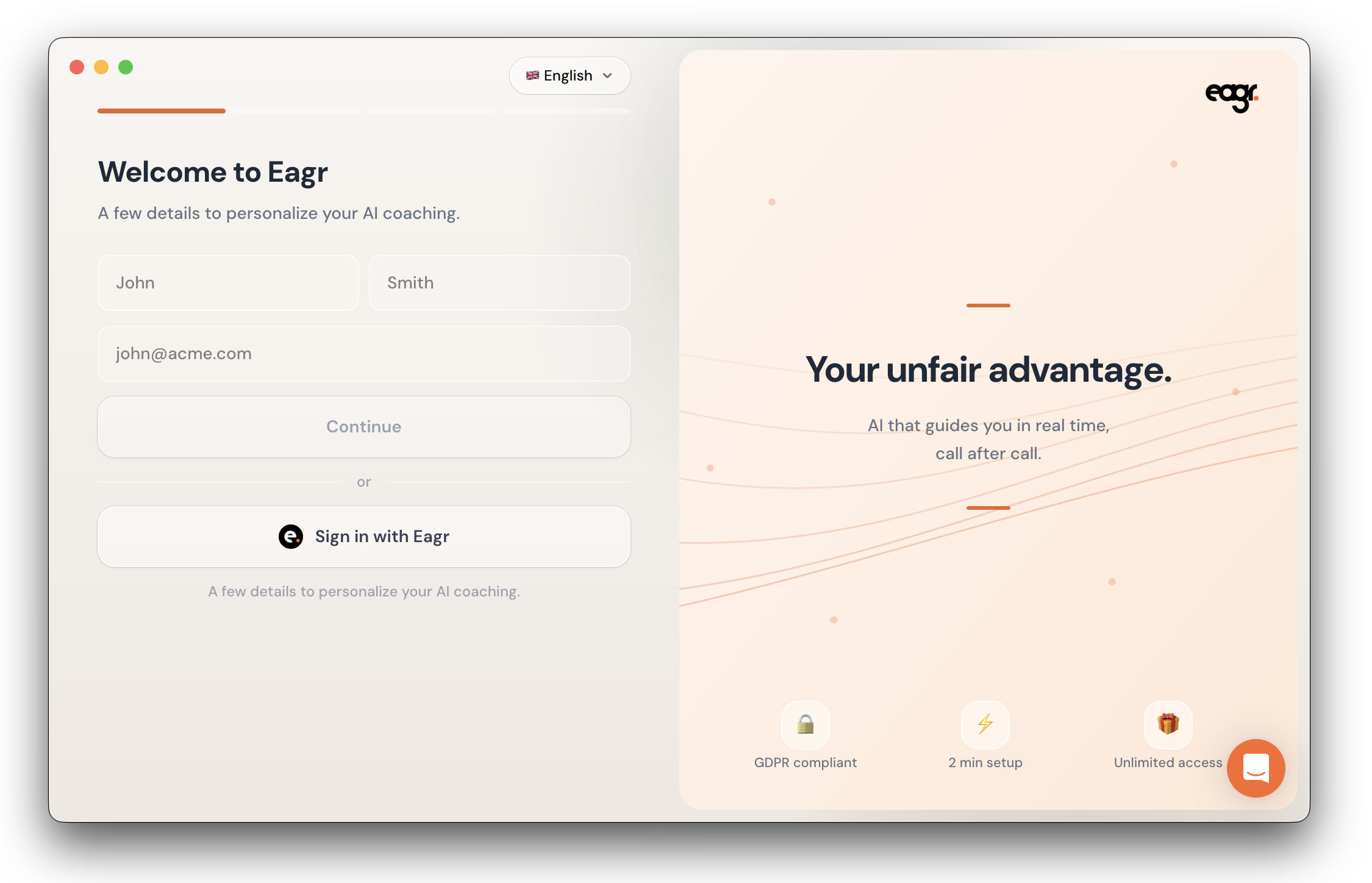
When you open the app for the first time, you'll see a welcome screen with two options:
- Create an account — Enter your first name, last name, and email, then click Continue
- Sign in with Eagr — If you already have an Eagr account (e.g. from the web platform), use this to log in directly
Grant permissions
After signing in, the app asks you to grant access to a few system permissions:
- Screen Recording — To detect and capture your meetings
- Microphone — To capture your voice during calls
- Accessibility (optional) — To detect the active browser tab
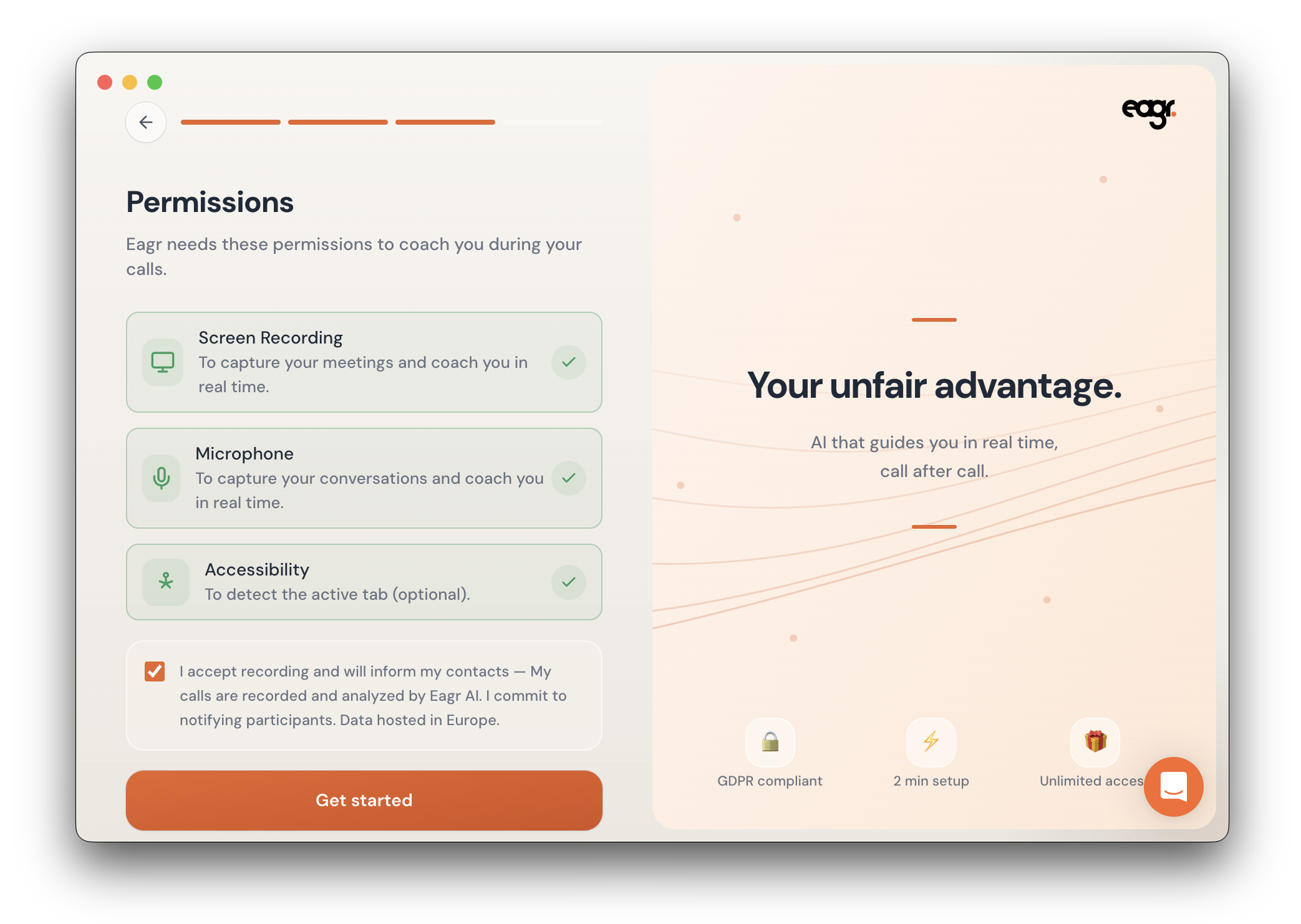
You also need to check the consent box: "I accept recording and I will inform my participants."
Click Get started to continue.
Set up your next steps
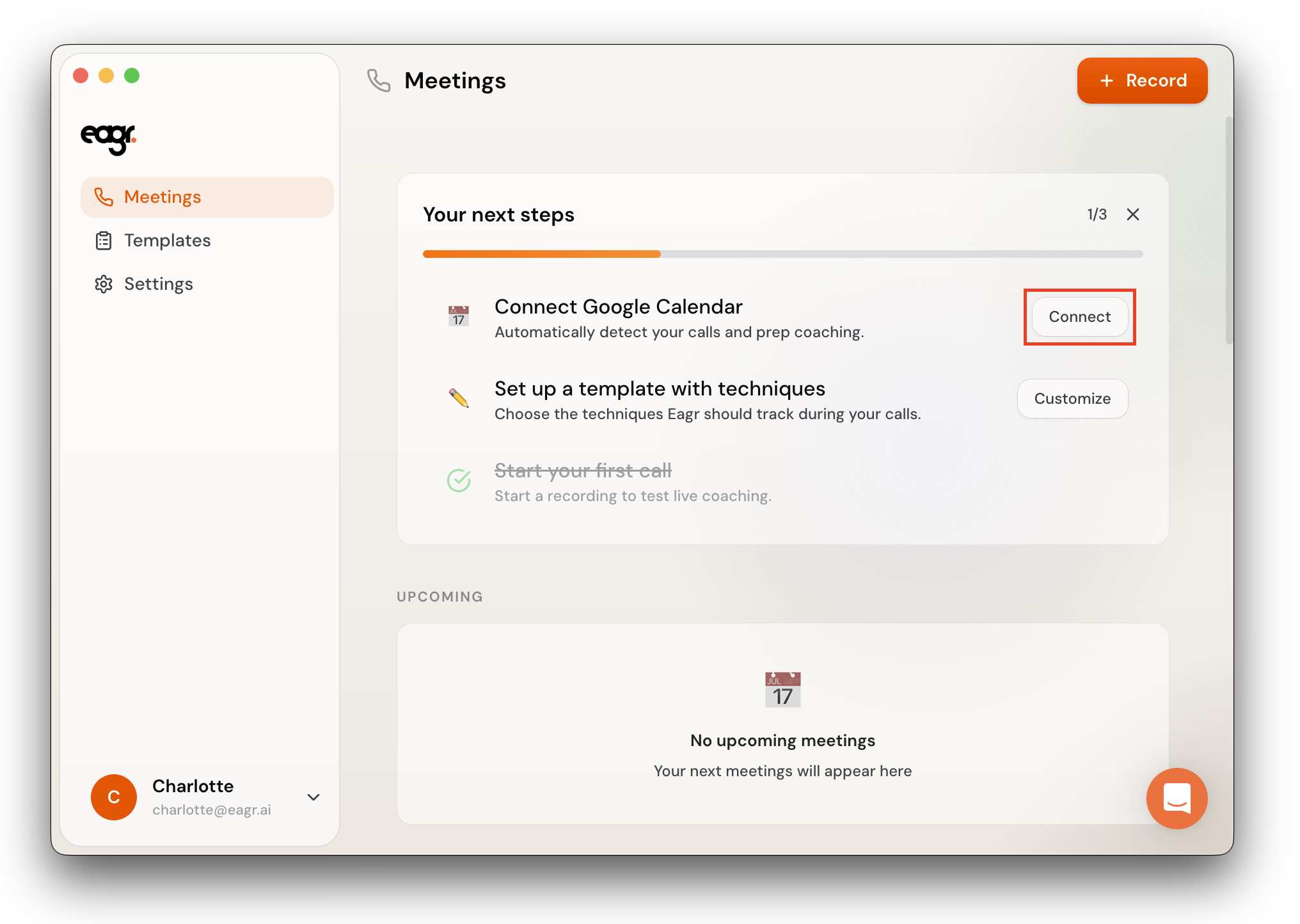
Once permissions are done, you land on the Meetings screen with a "Your next steps" checklist (3 steps):
1. Connect Google Calendar
Click Connect to link your Google Calendar. This lets the app detect your upcoming calls automatically and notify you when a meeting is about to start.
2. Configure a template with techniques
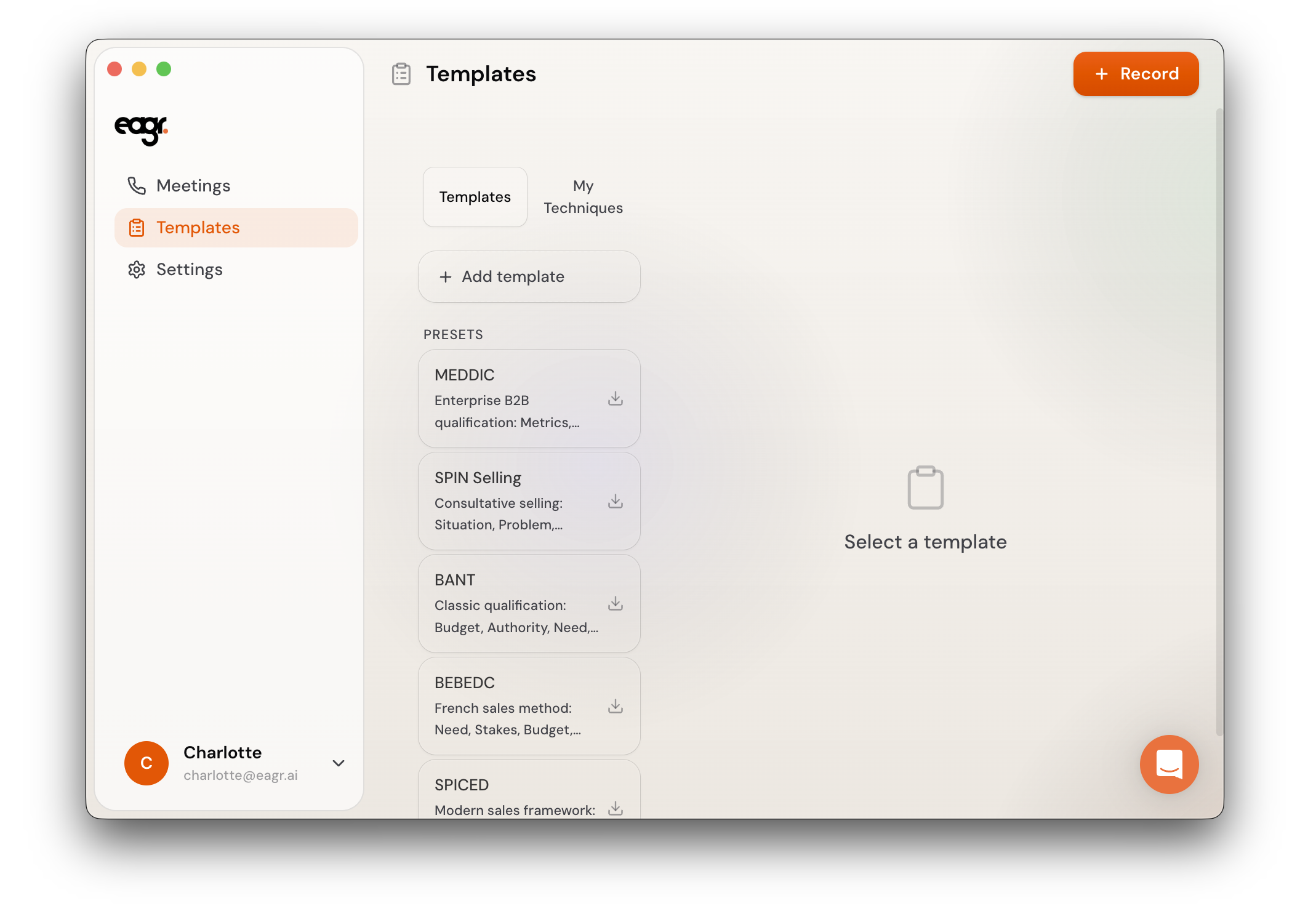
Click Customize in the Next steps section or select Templates in the side panel and pick a sales framework (MEDDIC, SPIN Selling, BANT, BEBEDC, or SPICED), or create your own. Templates are optional — you'll still get missed opportunity notifications without one.
A template is a set of sales techniques that the Live Coach will track during your calls. For example, a SPIN Selling template tracks whether you've asked Situation, Problem, Implication, and Need-Payoff questions.
For more details, read the articles Choose and configure a template and Create a custom technique.
3. Start your first call
Click + Record in the top-right corner to start a session manually, or wait for the app to detect a call from your calendar.
You can close the checklist and come back to it later — it stays visible until all steps are done.