Creating and configuring training modules is only available to users with the manager, director, or boss role.
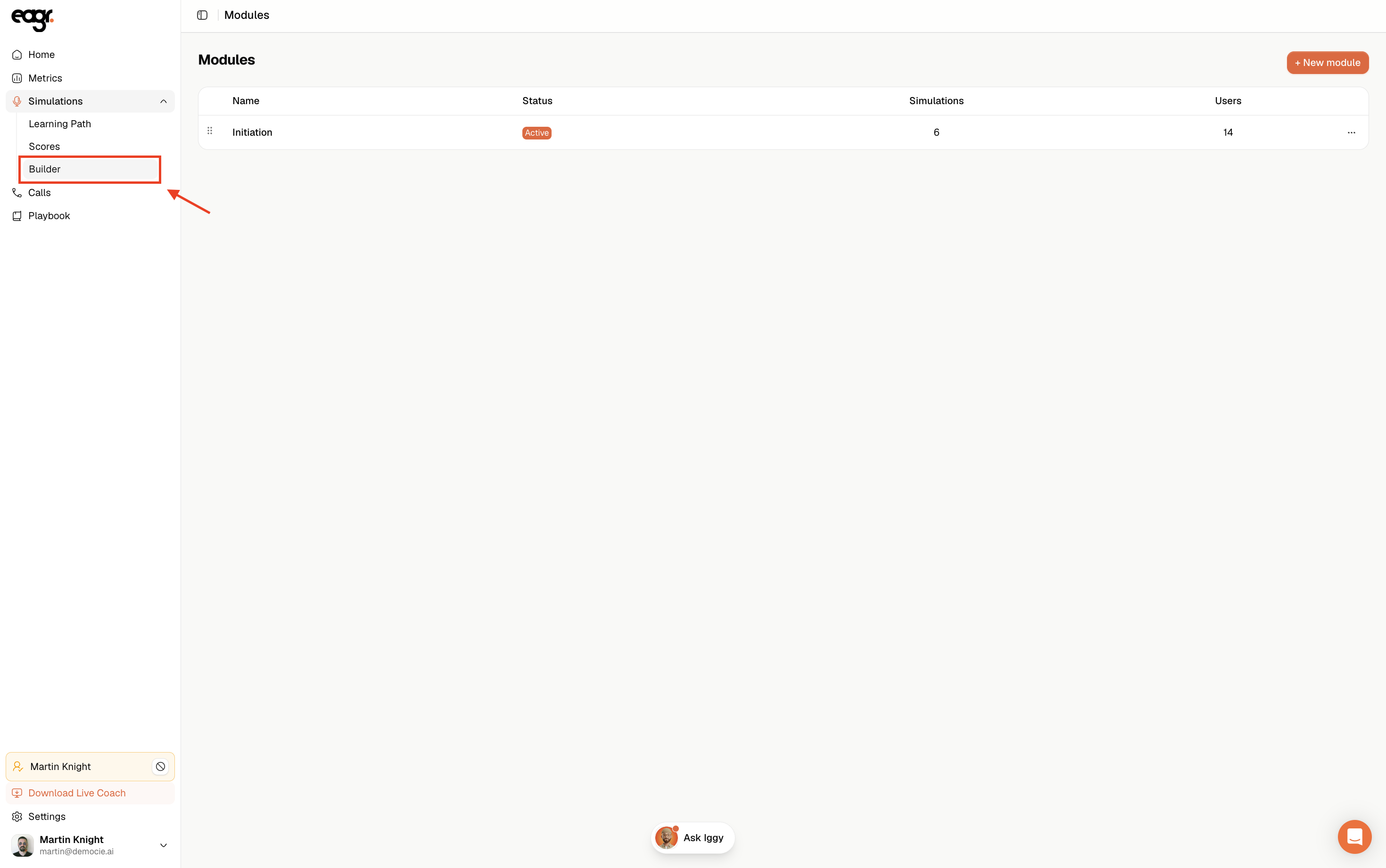
Access the Modules page
Go to Administration > Modules. This page shows an overview of your organization with four key metrics: Users, Simulations, Average score, and Completion rate.
Click on the Modules tab to see all your training modules. Each module displays its type (Shift or Pulse), name, duration, number of simulations, and assigned users.
Create a new module

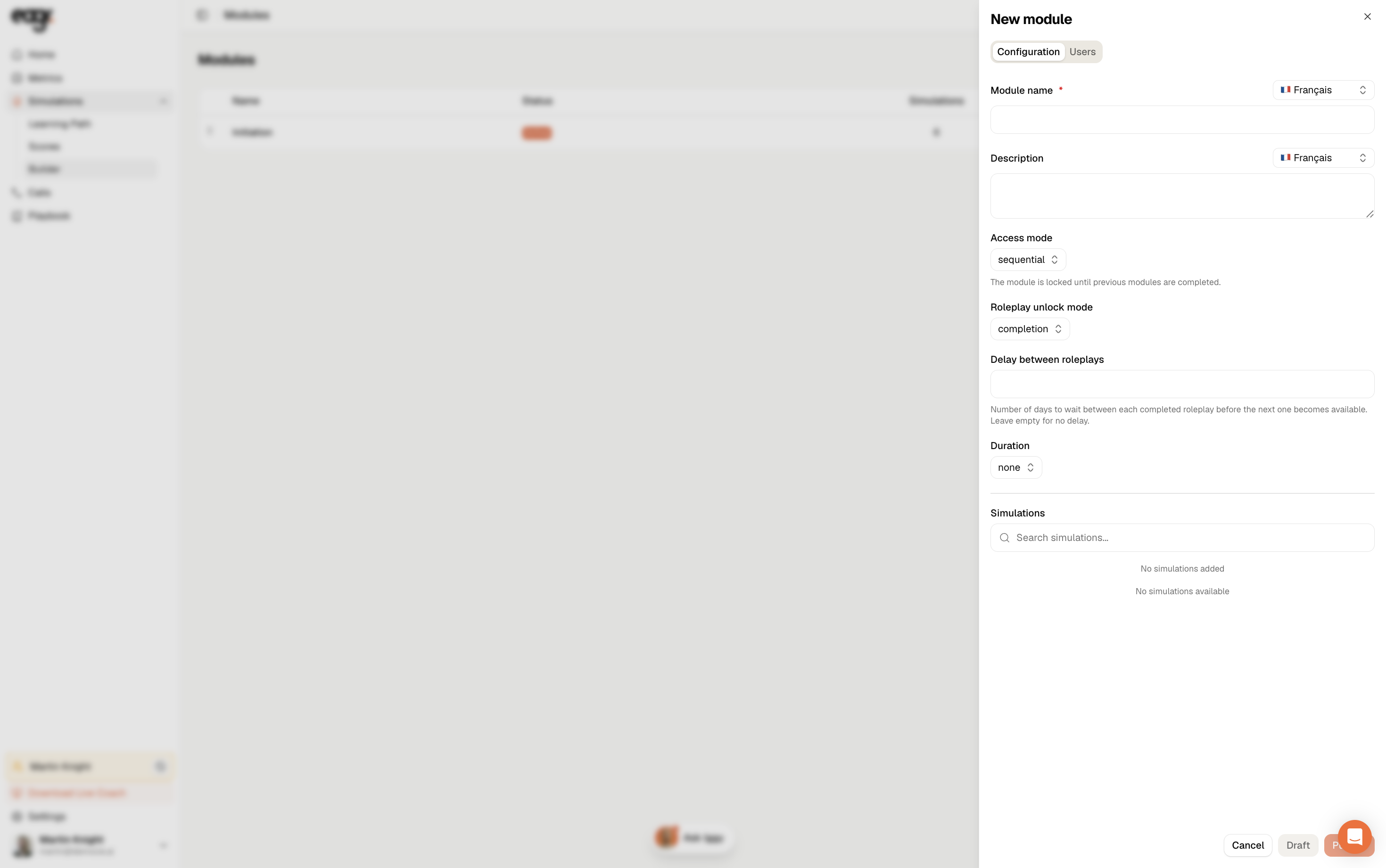
Click the + button in the top right corner of the Modules page. A dialog opens with the title "Create module" and the subtitle "Design a complete training path with multiple scenarios".
Fill in the following fields:

Module type
Choose between Shift and Pulse from the dropdown.
- Shift — identical path for all assigned users. Everyone follows the same sequence of simulations.
- Pulse — score-based adaptative learning path. Each user follows a sequence adapted to their progress.
Use absolute dates?
Check this box if you want to set fixed calendar dates for the module start and end. If unchecked, the module uses relative durations (e.g. 90 days from the assignment date).
Module name
Enter the name of the module. You can add another language with the flag dropdown (e.g. 🇫🇷 Français) if you want to provide a localized name (the magic wand icon lets lets you translate with AI).
Description
Optional. Add context or instructions for your team. A rich text editor is available with formatting options.
Duration (in days)
Set how long the module will be active. Use the slider or type a value directly. Once the duration expires, the module closes for the user — even if they haven't completed all simulations.
Number of attempts per simulation
How many times each user can attempt each simulation within the module (e.g. 3). Once the limit is reached, the user can no longer retry that simulation.
An attempt only counts if the session lasted more than 1 minute or was validated. Quick disconnections don't consume attempts.
Delay between each simulation (in days)
The waiting period between two simulations (e.g. 3 days). After completing one simulation, the next one only unlocks after this delay. Set to 0 to allow immediate access to the next simulation.
Start delay (in days)
How many days to wait before the module starts after being assigned to a user. Set to 0 to start the module immediately.
Once everything is configured, click Create.
Edit an existing module

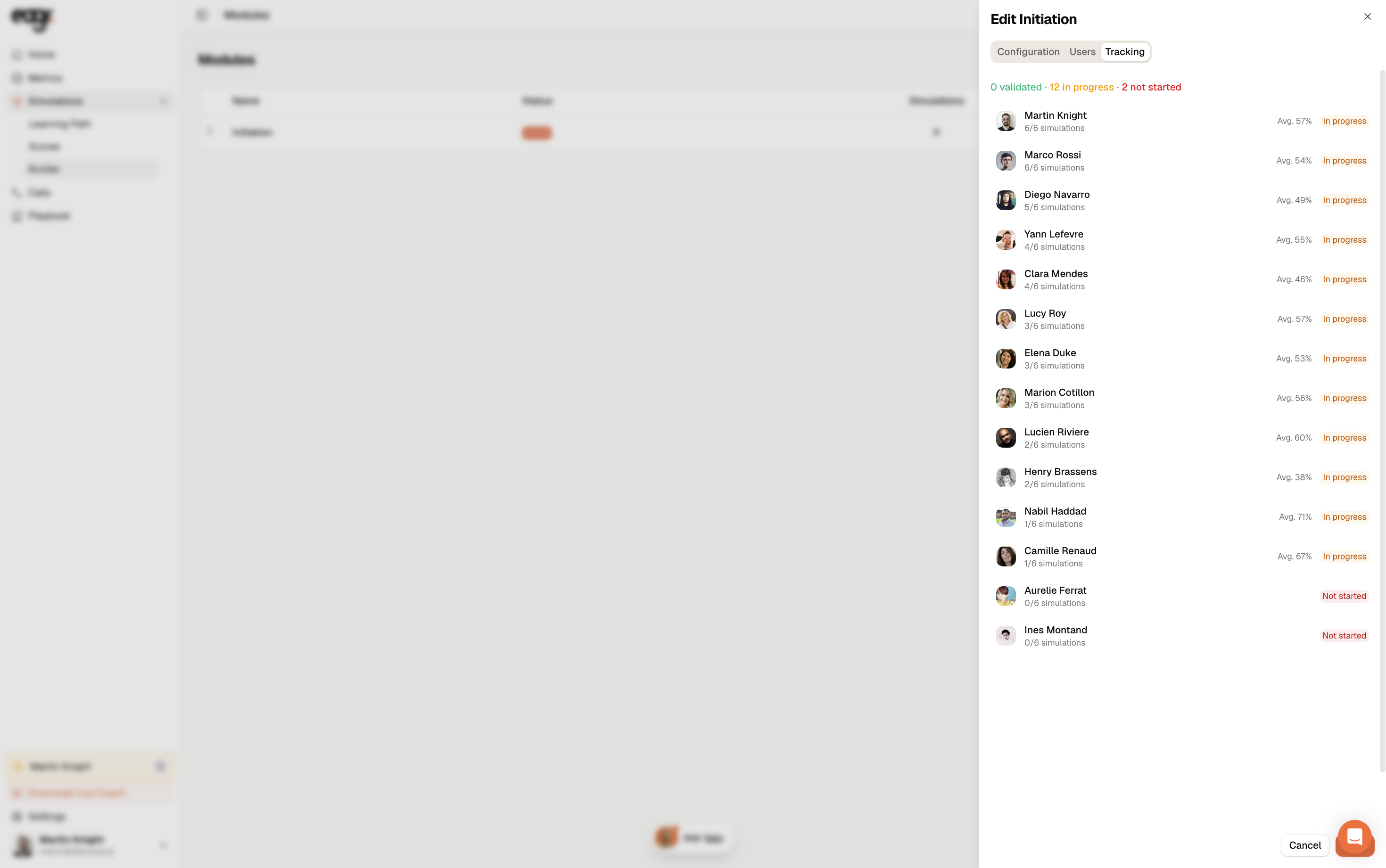
On the Modules page, click on a module row to open the Edit dialog. You'll find the same fields as during creation. Adjust any setting and click Update to save.
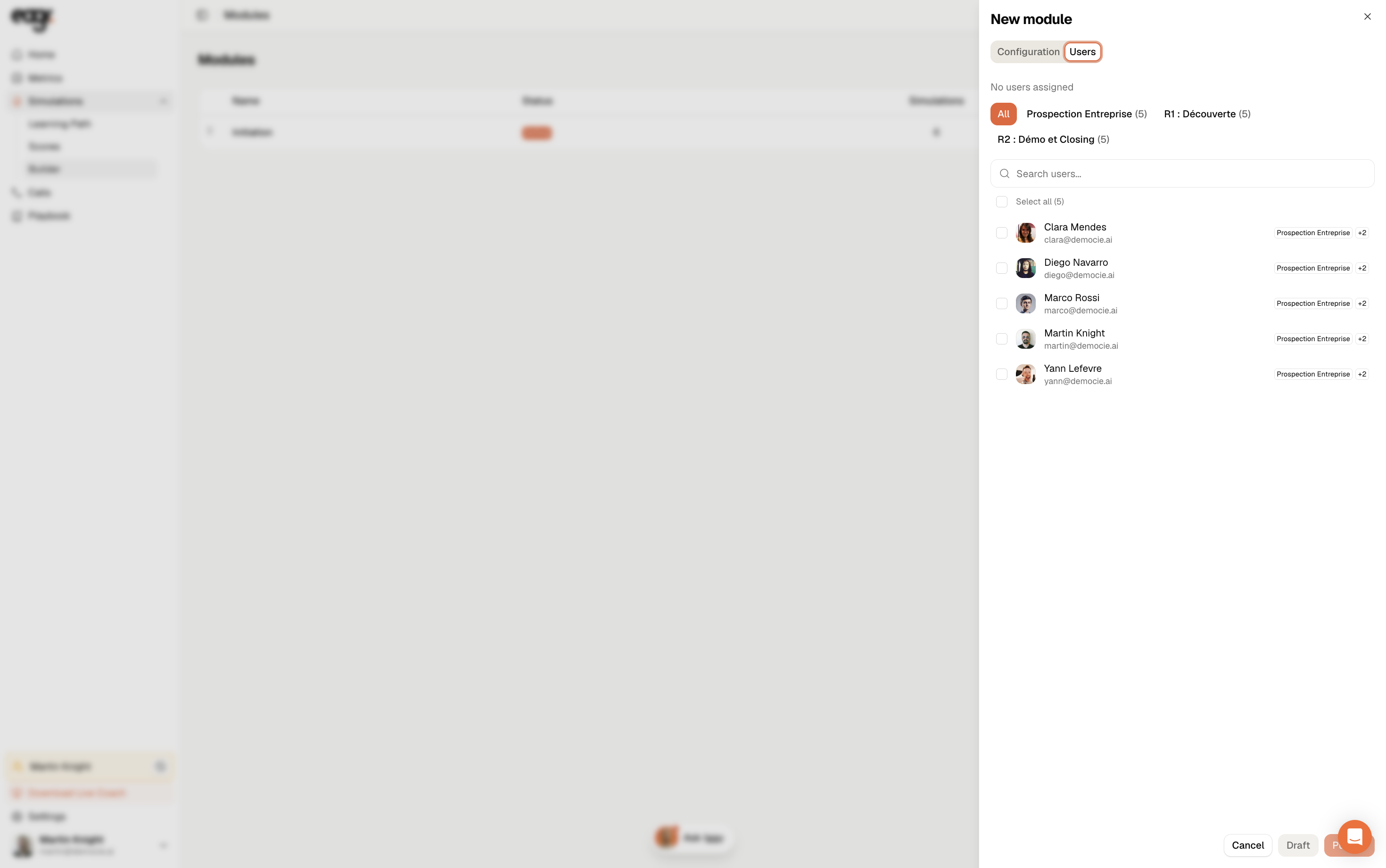
Assign users to a module

Hover over a module row to reveal the 👤 icon on the right side, and click the Assign users button. Select the users you want to assign to this module.
Reorder modules
If you have multiple modules, you can drag and drop them using the ⠿ handle on the left side of each module row. The order matters: users will go through modules in the order you define.
Dashboard overview
The top of the Modules page shows four summary cards:
- Users — total registered users in your organization.
- Simulations — number of available practices.
- Average score — average performance across all users.
- Completion rate — percentage of completed sessions.