
How module progression works
When your manager assigns you a training module, you'll find it on the Simulations page. A module contains a series of simulations to complete in a specific order.
At the top of the page, you'll see:
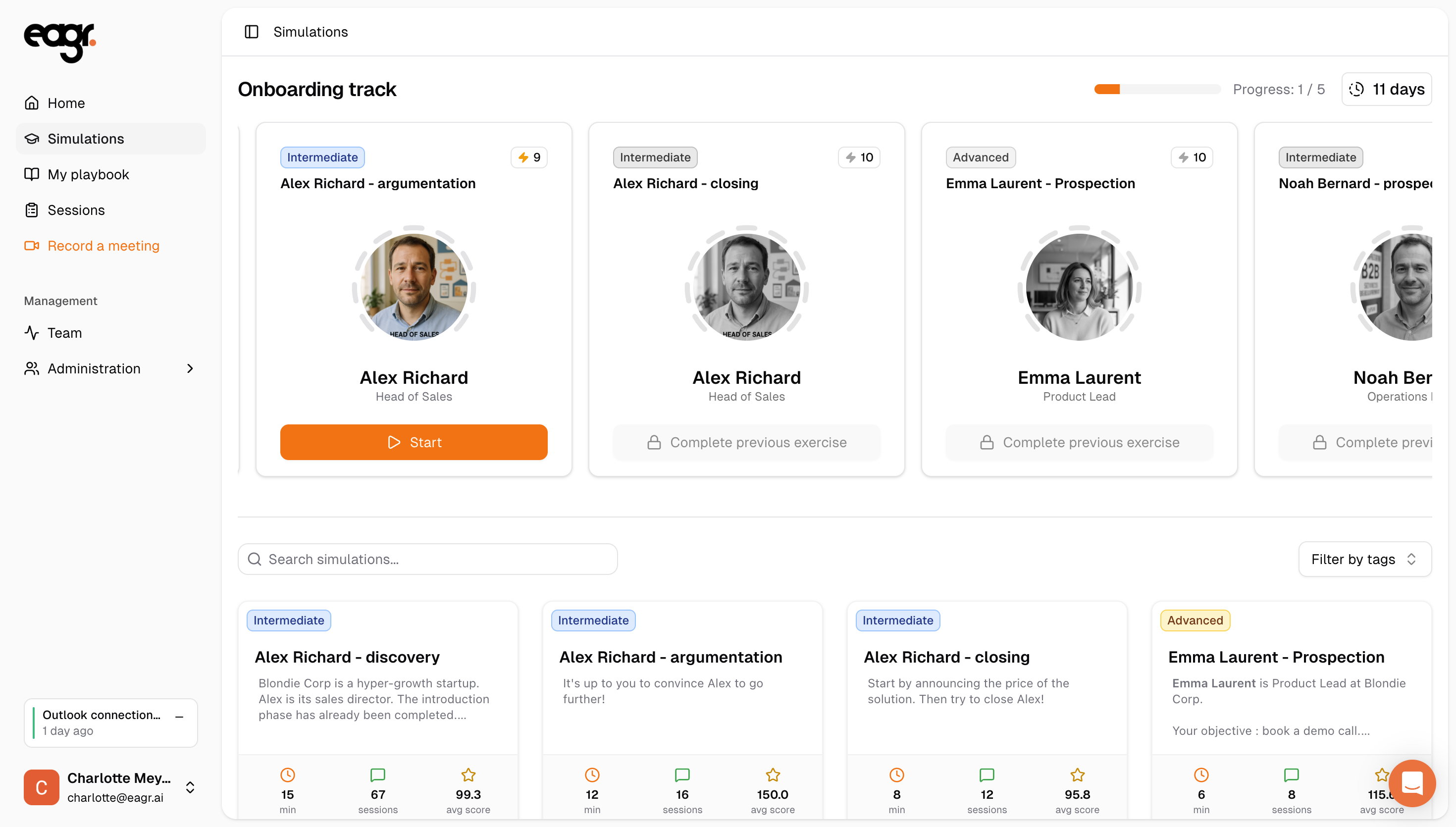
- The module name (e.g. "Onboarding track")
- Your progress (e.g. "Progress: 1 / 5") — the number of completed simulations out of the total
- The remaining time (e.g. "11 days") — the time left before the module expires
Each simulation is displayed as a card showing the persona name, the difficulty level, and the number of available attempts (⚡ icon, e.g. ⚡3 means 3 attempts).
Understanding the module timeline
A module has a total duration set by your manager (e.g. 30 days). Once this time is up, the module expires — even if you haven't completed all simulations.
The countdown displayed at the top right (e.g. "11 days") shows how much time you have left.
There may also be a start delay configured: the next session of the module won't begin immediately after completing the previous session but after a set number of days.
Reading the simulation cards
- Orange "Start" button — this is your next simulation to complete.
- "Retry" button — you've already completed this simulation and still have attempts left.
- 🔒 "Complete previous exercise" — the simulation is locked. You need to finish the previous one first.
Number of attempts
Each simulation has a maximum number of attempts (shown with the ⚡ icon on the card). Once you've used all your attempts on a simulation, you cannot retry it.
An attempt only counts if your session lasted more than 1 minute or if it was validated. If you hang up too quickly, it won't count as a completed attempt.
If you've reached the maximum on the current simulation but haven't completed the module, contact your manager — they can adjust the number of attempts from the admin settings.
I have multiple modules — how does it work?
If your manager has assigned you several modules, they are displayed in the order your manager defined. You'll need to complete the first module before the next one becomes active and follows its own progression rules.
You won't see upcoming modules listed as "coming next" — they will simply appear once the current one is completed.
Module simulations vs. free simulations
On the Simulations page, you'll see two areas:
- At the top: simulations from your assigned module. These follow the module rules — sequential order, delay between simulations, limited attempts, and a time limit.
- Below: the simulation library with all available simulations. Each one has a "Practice" button that is always available.
Simulations from the library that are also part of a future module may already be visible and available for free practice. Practicing them won't affect your module progression — when the module activates, you'll start fresh with the module rules.
Free practice sessions don't count toward your module progression and don't consume your module attempts. They're a great way to keep training while waiting for a delay or for your next module to start.
Module settings
The settings of each module (duration, number of attempts, delays...) are configured by your manager. To learn more, see Create and configure training modules.