
The Live Coach is a desktop app that feeds you advice in real time during your call, invisible to your prospect. Here's how to install it.
1. Download the app
Go to app.eagr.ai/download and click Download for macOS. The page shows the version and file size; the Other version? link lets you grab a Windows version or another build.
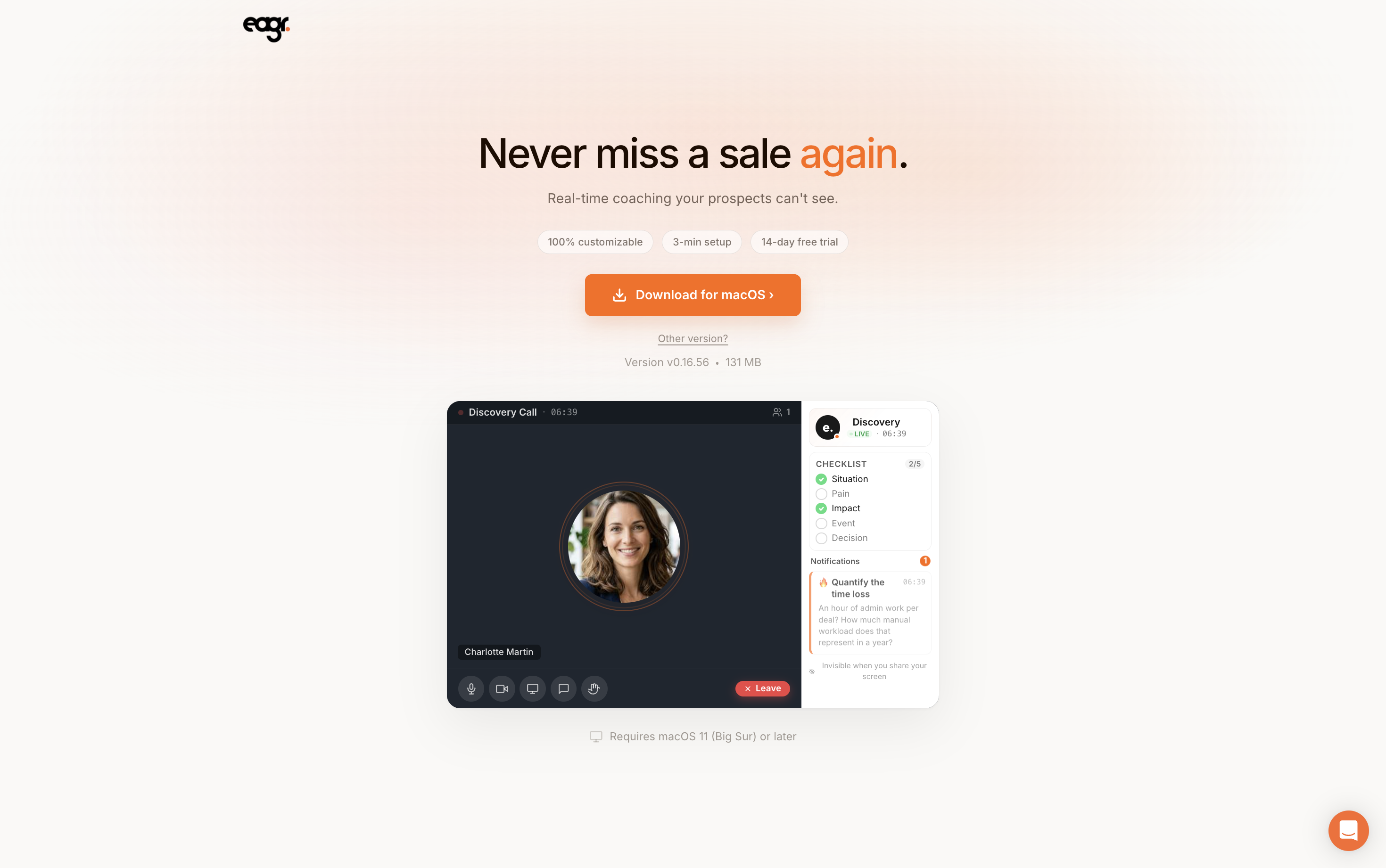
On macOS, the Live Coach requires macOS 11 (Big Sur) or later.
2. Sign in
Open the app and click Sign in with Eagr.
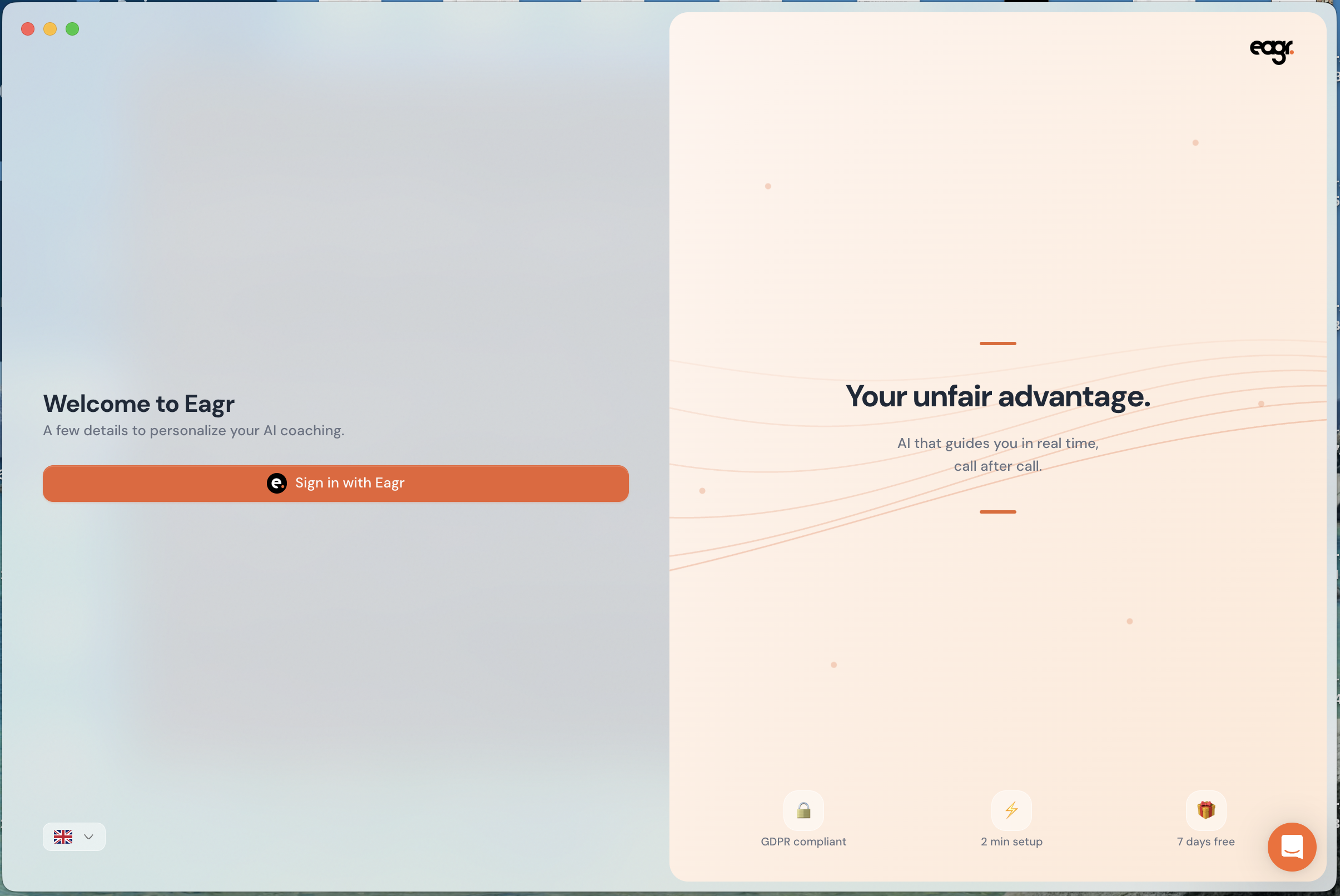
If you're not already signed in, the usual Eagr login page opens in your browser: sign in, and you're taken straight back to the app.
3. Grant permissions
On first launch, the Live Coach asks for a few permissions:
- screen recording and microphone: required, to capture your meeting and coach you in real time;
- accessibility and automatic window arrangement: optional, to detect the active tab and position the window.
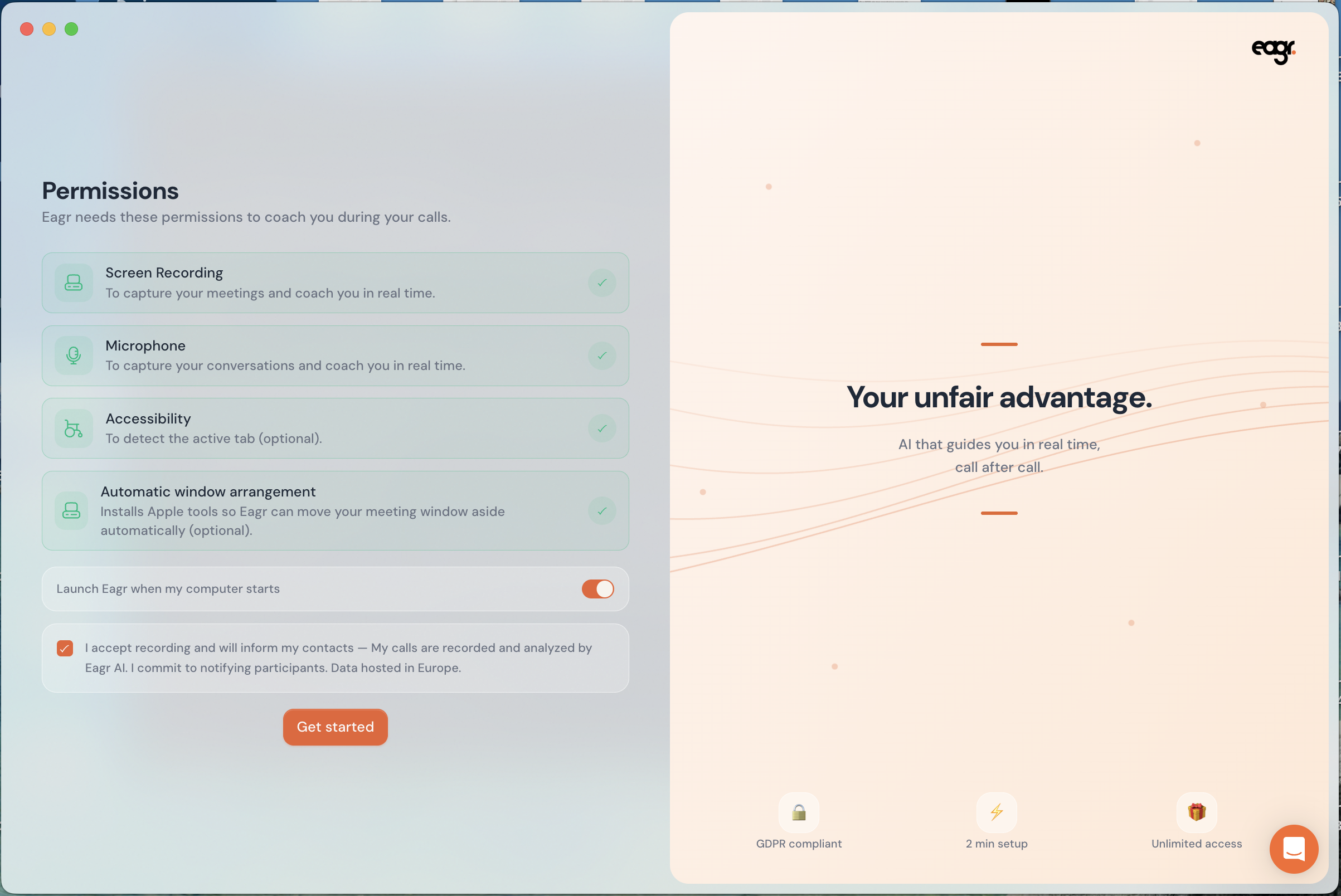
You can also enable Launch Eagr at startup. Finally, tick the consent box (you agree to tell your call participants that the call is recorded and analyzed), then click Start.
The Live Coach captures the audio from your computer (the meeting playing on your machine). It does not capture a call made from your mobile phone.
4. Set your preferences
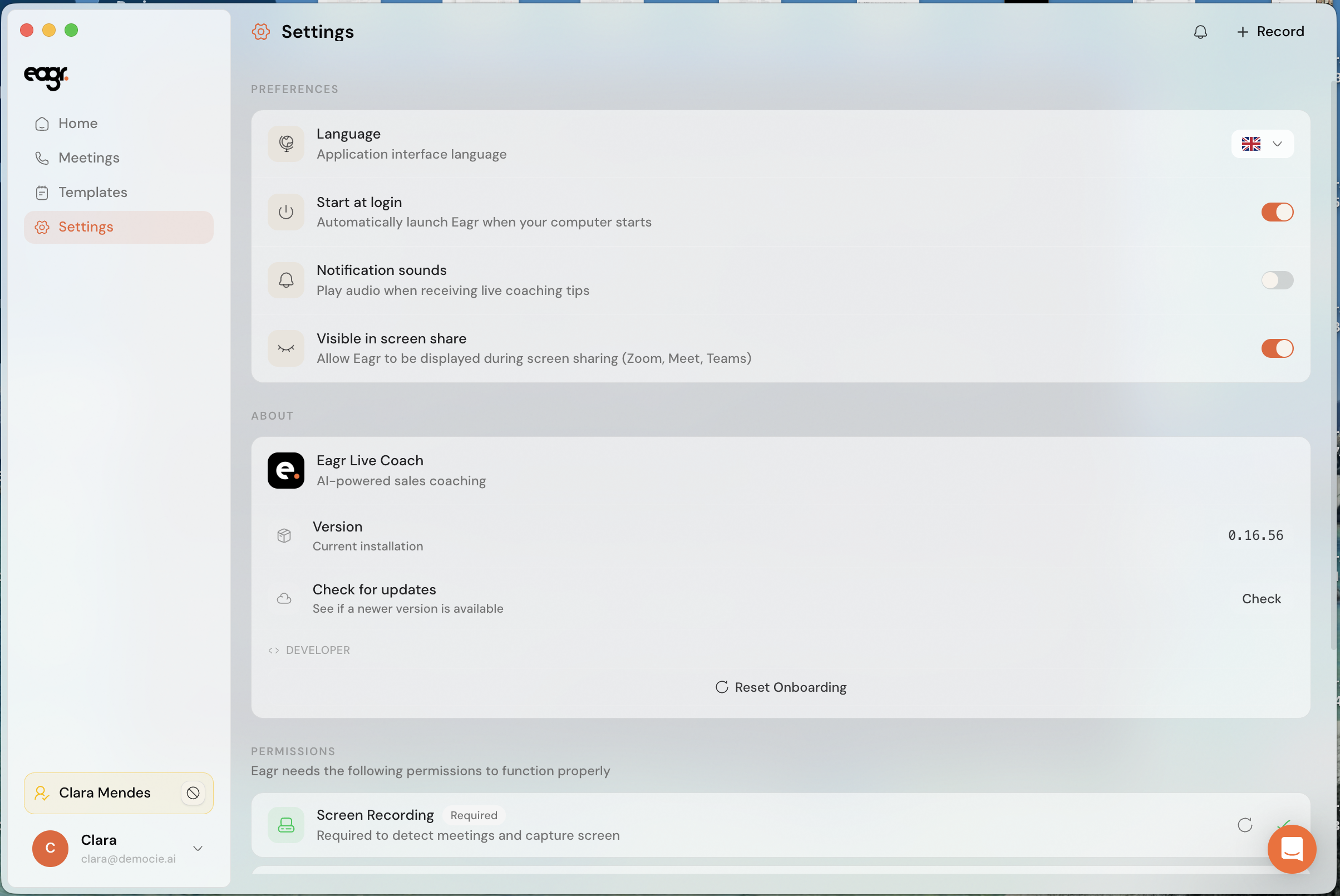
In Settings, you can adjust the interface language, Launch at startup, notification sounds, Visible during screen share (by default the Live Coach stays invisible when you share your screen) and Check for updates.
What's next?
To start coaching on a call: Launch the Live Coach during a call. To choose what you're guided on: Live Coach templates. Having trouble? The Live Coach isn't working during my call.