
Once the Live Coach is installed, there are two ways to start coaching on a call.
Automatic: when a meeting is detected
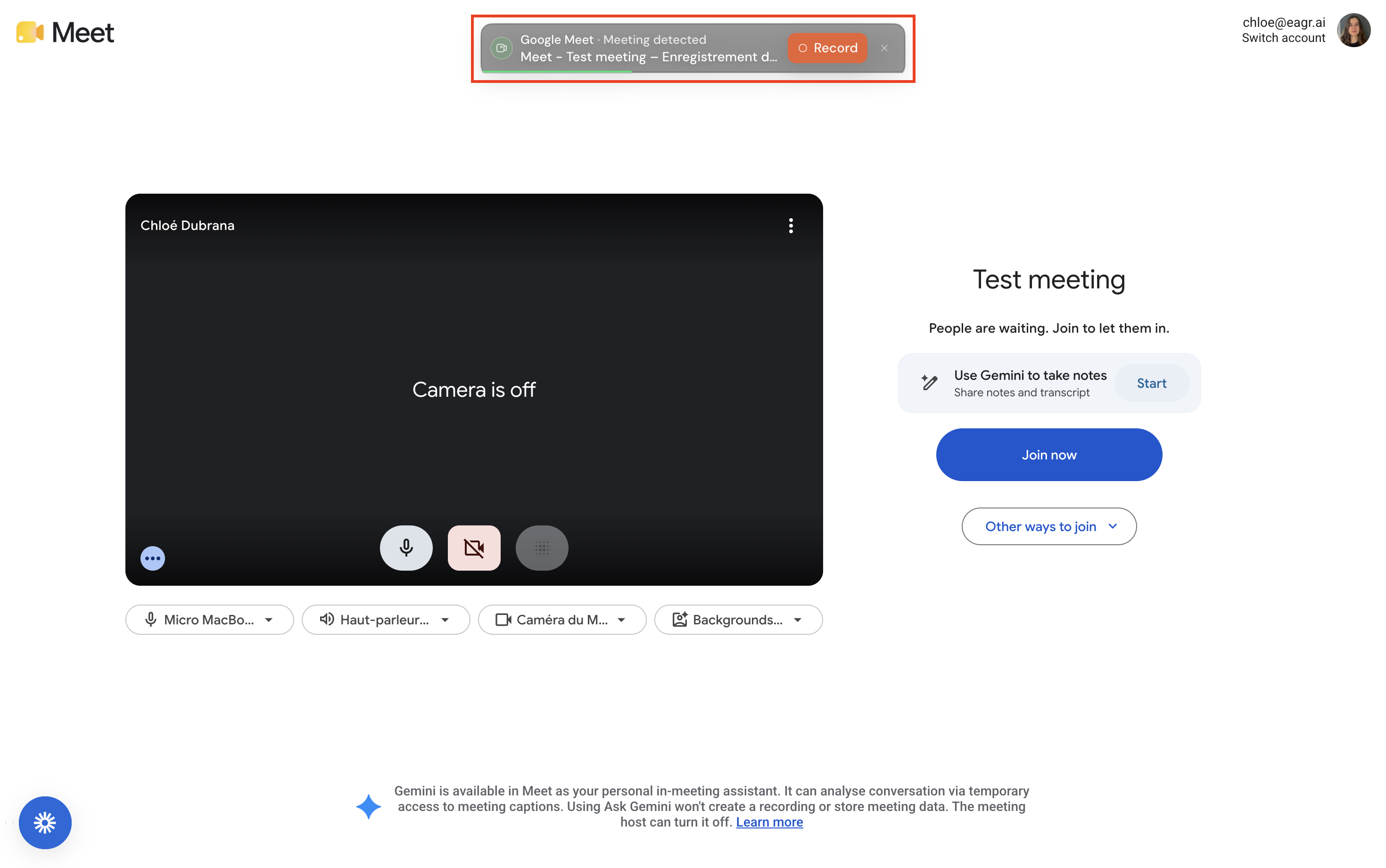
When you join a meeting (Google Meet, Zoom, Teams…), the Live Coach detects it and shows a notification at the top of your screen. Click Record to start coaching.
Manual: the "+ Record" button
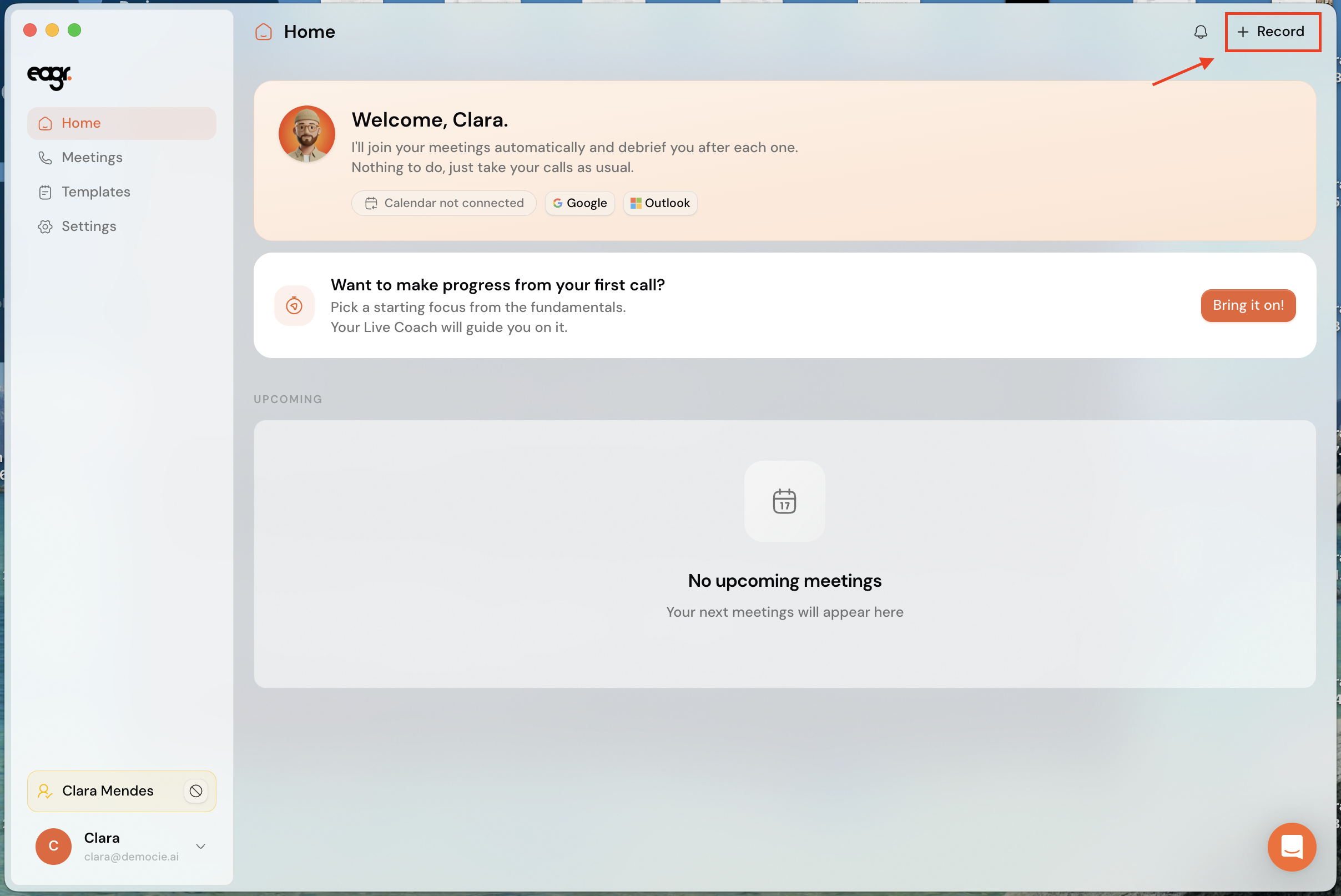
In the app, click + Record (top right).
The Call configuration window opens. Choose the template that fits your call (for example MEDDIC), then click Start. You can also start without a template.
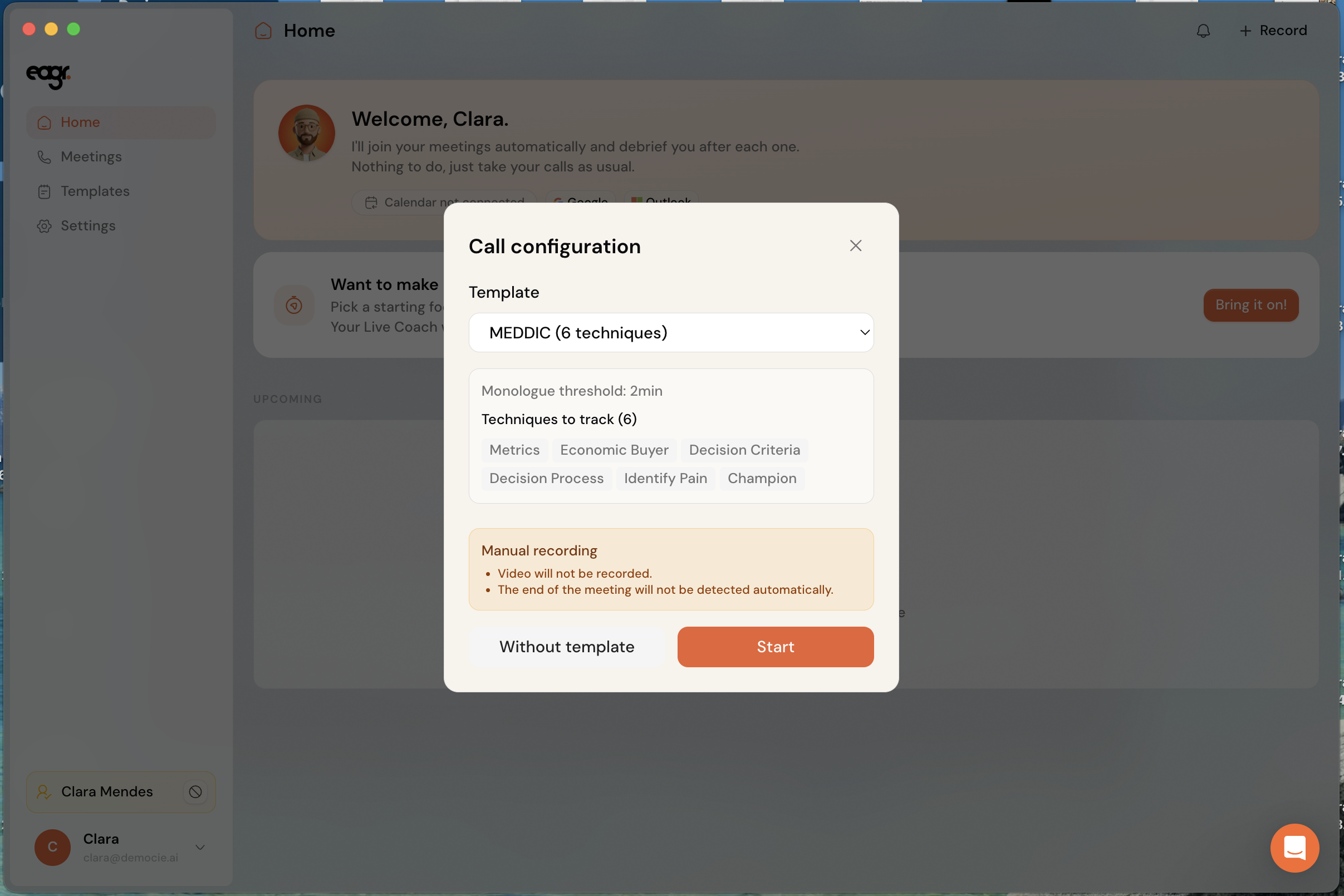
In manual recording, the video isn't recorded and the end of the meeting isn't detected automatically: remember to stop the recording yourself.
During the call
The Live Coach panel shows two things:
- a checklist: the key steps of your template to tick off as you go, with a progress counter (2/5…);
- notifications: advice that appears at the right moment (for example "Quantify the time loss").
The panel is invisible when you share your screen (adjustable in Settings).
Don't combine it with the bot
Don't run the Live Coach and the recording bot on the same call. Choose one or the other: the Live Coach coaches you live, the bot records for after-the-fact analysis.
Going further
To customize what you're guided on: Live Coach templates. Having trouble mid-call? The Live Coach isn't working during my call.